
Why Your Phone Activation Facial Recognition Fails and How to Retry
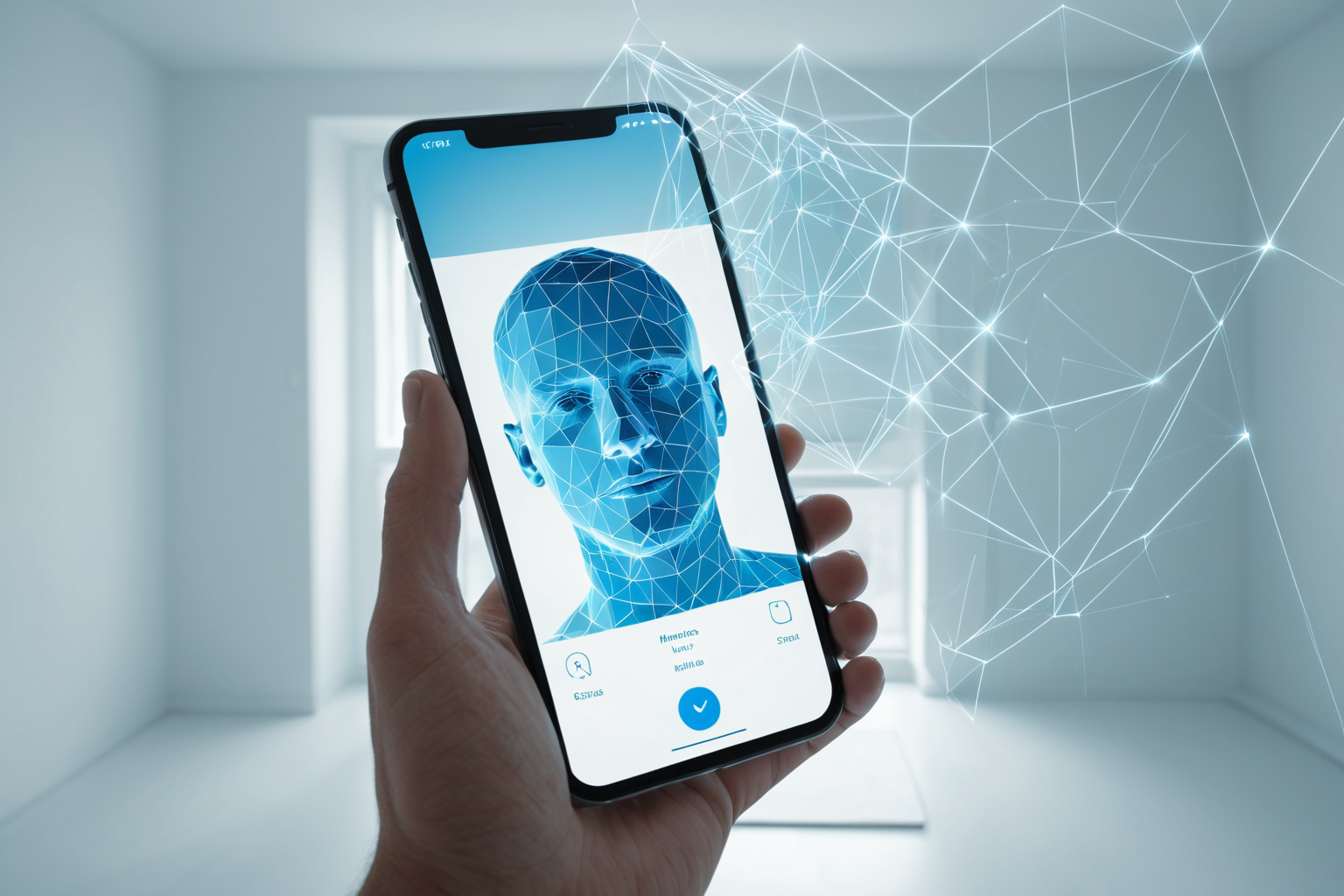
If you're struggling with facial recognition failures when activating a new phone, it's easy to feel frustrated. First-time online activations can be especially tricky, leading to thoughts like "Is my face the problem?" or "Is the device malfunctioning?" In reality, multiple factors often combine to cause these issues, including camera conditions, lighting, ID information input methods, and temporary app errors.
This guide breaks down why facial recognition might fail during phone activation, how to retry effectively, and what beginners commonly overlook. Note that procedures and policies vary by carrier, so always check your carrier's official website or customer service before proceeding.
Understanding the Facial Recognition Process for Phone Activation
Facial recognition during phone activation is a verification step that uses facial data to confirm identity. It’s typically used in online activations or non-face-to-face sign-ups, comparing ID information with your face capture to verify you’re the legitimate user. This process aims to prevent fraudulent activations and stop others from using stolen identities.
In simpler terms, it's like a camera checking if "you really are who you say you are." However, unlike human eyes, the system requires specific conditions—such as proper lighting and correct input—to pass successfully. So, while your face is important, environmental factors often play a bigger role in whether recognition works.
You can find similar articles in one place.
View Related ArticlesCommon Reasons for Failed Verification
The most frequent issue is lighting. Too dim or too bright light can make facial features unclear—either by obscuring outlines in low light or causing glare that distorts the image. Backlighting near windows or strong screen reflections also increase failure rates.
Next, camera angle and movement often cause problems. If your face isn't centered on screen or you move your head during capture, recognition may fail. Items like glasses, hats, masks, or long bangs covering part of your face can interfere too. Low device performance or unstable internet connections can also interrupt the process.
Prepare Your Environment Before Retry
If facial recognition fails, avoid repeatedly trying immediately—first, optimize your environment. Move to a well-lit area, remove anything covering your face, and gently clean the camera lens with a soft cloth. Even small smudges or fingerprints can lower accuracy.
For example, if you tried near a window and failed, move indoors under a lamp or ceiling light and retry. Also, avoid holding your phone too close to your face—move slowly to align with on-screen guidelines for stable positioning.
Simple Retry Steps for Beginners
First, fully exit the app and restart it. Temporary glitches often resolve with a simple restart. Second, check your internet connection—if Wi-Fi is unstable, switch to mobile data or vice versa.
Third, double-check ID information accuracy. Even a single typo in name, birthdate, or issue date can cause failure. For example, if entering info from a resident registration card, carefully review each number. Fourth, if still unsuccessful, wait 10-15 minutes before retrying, or contact customer service to ask about alternative verification options.
Avoid Common Mistakes
Many assume that as long as their face is visible, they’ll pass—but failing to follow on-screen prompts often causes issues. For instance, ignoring instructions like "slowly turn your head left and right" or "remove glasses and retake" can lead to failure. Always follow screen directions exactly.
Another common mistake is retrying too quickly after a failure. Systems may require additional verification or temporarily block repeated attempts. Waiting 5-10 minutes before trying again often works better. Note that retry limits vary by carrier, so check official guidelines for the most current policies.
Additional Checks During Activation
Phone activation isn't just about passing facial recognition—it also involves selecting a plan, entering SIM details, confirming shipping address, and reviewing contract terms. Assuming facial recognition success means everything is done can lead to unexpected delays later.
For example, number porting (switching carriers) may require additional information from your previous provider. Budget carrier activations might have different steps depending on the service provider, so follow all on-screen instructions carefully. The key is taking it step-by-step without rushing.
In Summary: Check Environment and Verify Information
Failed facial recognition during phone activation is common, often due to environmental or input errors rather than your face itself. By systematically checking lighting, angle, camera condition, ID details, and network status, you can improve retry success rates.
The best approach is troubleshooting step-by-step: fix lighting, restart the app, verify info, wait before retrying, and contact support if needed. Remember that carrier policies change frequently, so always confirm details on your carrier's official site before starting.
FAQ
Q1. Is my face causing facial recognition failures?
A1. Not necessarily. Lighting issues, camera movement, incorrect ID input, or app errors are more common causes. First check your environment and data entry.
Q2. Will glasses or masks always cause failure?
A2. No, but they can reduce recognition accuracy. Follow prompts to remove them before retrying.
Q3. How many times can I retry?
A3. Retry limits vary by carrier and service. Avoid consecutive attempts—wait a few minutes between tries, and check official guidelines for current policies.
Keep reading articles on similar topics.
View Category ArticlesFAQ
Is my face causing facial recognition failures?
Not necessarily. Lighting issues, camera movement, incorrect ID input, or app errors are more common causes. First check your environment and data entry.
Will glasses or masks always cause failure?
No, but they can reduce recognition accuracy. Follow prompts to remove them before retrying.
How many times can I retry?
Retry limits vary by carrier and service. Avoid consecutive attempts—wait a few minutes between tries, and check official guidelines for current policies.
Korean Source
This article is an English localization of a Korean-language report from BlogScore. Original: 휴대폰 개통 안면인증 실패하는 이유와 재시도 방법 정리