
Understanding the CSS Box Model: Margins, Padding, and Borders Explained
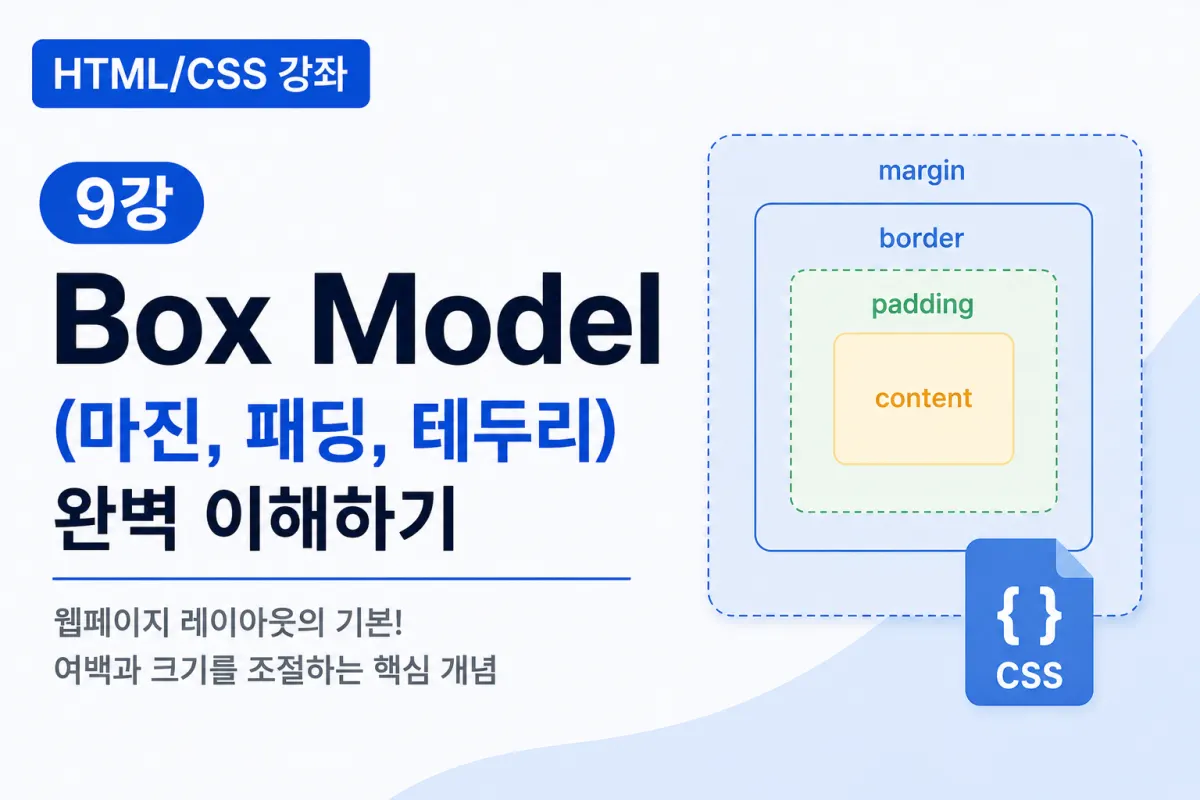

What Is the Box Model?
All elements on a web page are essentially invisible squares (boxes).
Headings are boxes, images are boxes,
buttons and input fields are also boxes.
In CSS, we adjust the size and spacing of these boxes to build the layout.
This is why understanding the Box Model is a fundamental concept in CSS.
The Structure of the Box Model
A single box consists of four main parts:
Margin
 ┌──────────────────────┐
 │      Border          │
 │  ┌──────────────┐    │
 │  │   Padding    │    │
 │  │ ┌──────────┐ │    │
 │  │ │ Content  │ │    │
 │  │ └──────────┘ │    │
 │  └──────────────┘    │
 └──────────────────────┘
From inside to outside, the order is:
Content (the actual content)
Padding (inner spacing)
Border (the outline)
Margin (outer spacing)
Understanding these four components allows you to create most layouts.
Content
The Content area is where the actual content appears, such as text,
images,
buttons,
and input fields.
The size of the Content area is defined using width and height.
width:300px;

height:200px;
Width and Height
Let's start by defining the size of an element.
.box{

    width:300px;

    height:150px;

}
This creates a box that is 300 pixels wide and 150 pixels tall.
What Is Padding?
Padding is the inner spacing between content and border.
For example, consider a button:
padding:20px;
Adding padding creates space around the text inside the button, making it look cleaner.
Without padding, the text would appear too close to the border, which can feel cramped.
Applying Padding
.box{

    padding:20px;

}
This applies 20 pixels of inner spacing on all sides.
Directional Padding
padding-top:20px;

padding-right:30px;

padding-bottom:20px;

padding-left:30px;
You can also specify padding for each direction individually.
What Is Margin?
Margin is the outer spacing between elements.
It's used to create space between headings and paragraphs,
and between buttons or other elements.
margin:30px;
Margin creates empty space outside the element.
Applying Margin
.box{

    margin:40px;

}
This creates 40 pixels of space around the element.
Directional Margin
margin-top:20px;

margin-right:30px;

margin-bottom:20px;

margin-left:30px;
You can specify margin for each direction, just like padding.
What Is Border?
The Border defines the outline of an element.
border:1px solid black;
The parts mean:
1px → thickness
solid → line style
black → color
Adding a border makes it easier to see the size of the box.
Border Styles
There are many border styles available:
border:2px solid blue;
Solid line
border:2px dashed red;
Dashed line
border:2px dotted green;
Dotted line
In practice, solid is the most commonly used style.
Border Radius
To round corners, use:
border-radius:10px;
This is frequently used in button and card designs.
Practical Example
HTML
<div class="box">

    HTML & CSS

</div>
CSS
.box{

    width:300px;

    padding:20px;

    margin:30px;

    border:2px solid #154B95;

}
This creates a card-like structure.
Difference Between Margin and Padding
Many beginners get this mixed up.
Padding
Inner space inside the element
[ text ]
Margin
Outer space between elements
[ box ] [ box ]
Remember: Padding is inside, Margin is outside.
Using Shorthand Properties
You can also write padding and margin in shorthand:
padding:20px;
This applies to all four sides.
padding:20px 40px;
Top and bottom: 20px,
Left and right: 40px
padding:10px 20px 30px 40px;
The order is:
Top → Right → Bottom → Left
You can use the same method for margin.
Creating Cards with the Box Model
.card{

    width:350px;

    padding:25px;

    margin:30px auto;

    border:1px solid #ddd;

    border-radius:10px;

}
This style is commonly used for blog cards, product cards, and notices.
Common Mistakes for Beginners
1. Confusing Margin with Padding
Padding is inside,
Margin is outside.
2. Border Thickness Affecting Size
The border also affects the element's size.
You can manage this better by using box-sizing, which will be covered in the next lesson.
3. Forgetting to Include Units (px)
margin:20;
Should be written as:
margin:20px;
4. Using <br> for Spacing Instead of CSS
It's better to use CSS margin and padding instead of HTML <br> tags for spacing.
Key Takeaways from This Lesson
Let's summarize what we've learned:
All HTML elements are boxes.
Content is the area where actual content appears.
Width and height define an element's size.
Padding creates inner spacing between content and border.
Margin creates outer spacing between elements.
Border defines the outline of an element.
Border Radius rounds corners.
Margin and Padding are the most commonly used properties in CSS layout.
Understanding these concepts allows you to create more natural spacing and layouts on web pages.
In Conclusion
This lesson covered the core concept of Box Model in CSS, teaching how to adjust element size and spacing.
At first, margin and padding may be confusing, but practicing by changing values will help you get comfortable quickly.
In the next lesson, we'll learn about creating layouts with Flexbox, a key skill for modern web design. Let's take it step by step together.
FAQ
What is the Box Model in CSS?
The Box Model describes how elements are structured on a web page, consisting of content, padding, border, and margin.
How do I add spacing inside an element?
Use padding to create space between the content and the border of an element.
Why is my element larger than expected?
Adding a border increases the total size. Use box-sizing: border-box; to include borders in the width/height calculation.
Korean Source
This article is an English localization of a Korean-language report from BlogScore. Original: [Html/CSS 강좌] 9강 Box Model(마진, 패딩, 테두리) 완벽 이해하기