
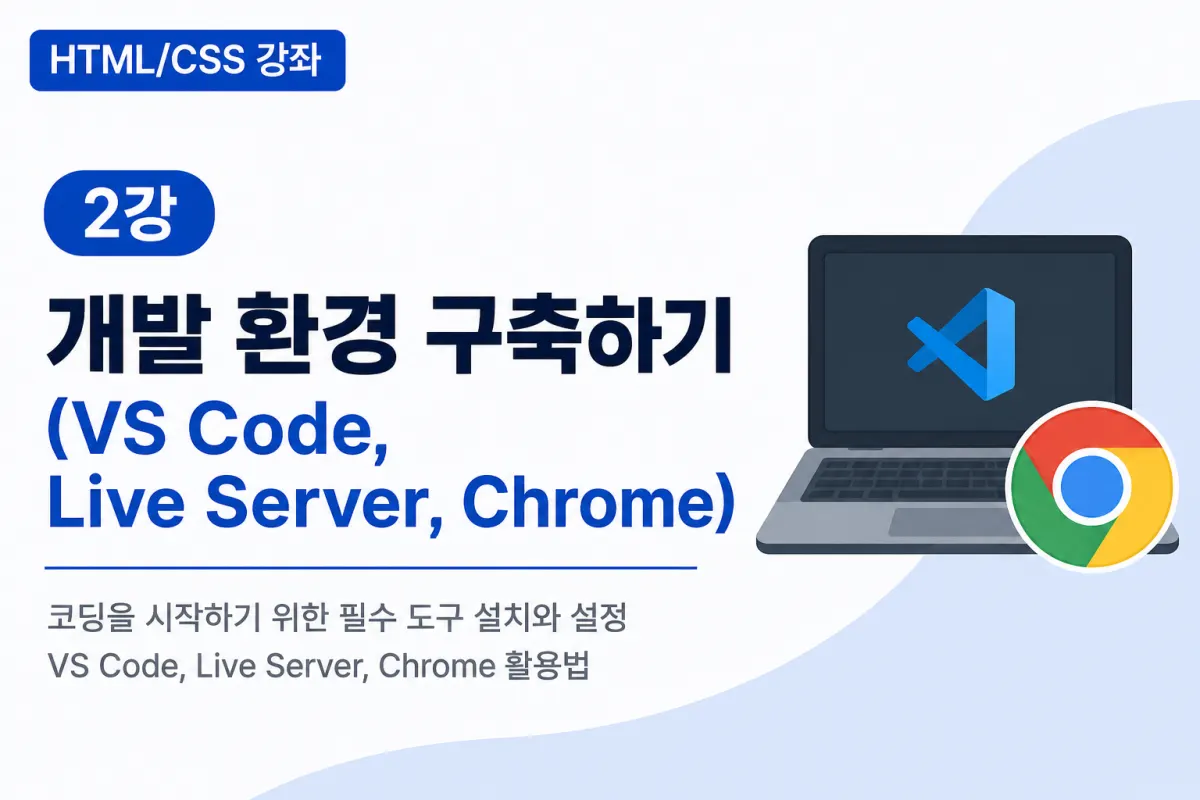
Setting Up Your Web Development Environment: VS Code, Live Server & Chrome
What is a Development Environment?
Before starting to code, the first thing you need to do is set up your development environment.
A development environment simply means the programs and tools that allow you to write and run code.
You don't need special equipment for web development.
With just a few free programs installed, anyone can start developing right away.
This lesson will cover these three essential tools:
VS Code
Live Server
Google Chrome
You'll have everything you need to learn HTML and CSS with just these three.
What is VS Code?
VS Code (Visual Studio Code) is currently the most widely used free code editor.
At first glance, it may look like a simple text editor, but with various features and extensions, it can become a professional development environment.
Many web developers choose VS Code because:
It's free to use
It runs quickly
Supports multiple programming languages
Has a vast library of extensions
Features excellent auto-completion
Makes it easy to spot errors
You can develop with VS Code for HTML, CSS, JavaScript, PHP, Python, and most other languages you'll learn later.
Installing VS Code
Let's start by installing VS Code:
Go to the official VS Code website
Download the installer for your operating system
Run the installation program
Most options can remain as default
Launch VS Code once installation is complete
The first time you open it, you'll see a clean interface.
It may seem empty now, but this is where you'll create all your future projects.
Create Project Folders First
Before coding, it's best to create a project folder first.
You can use names like:
html-css-study
or
my-first-web
Using English letters and numbers for folder names is recommended, with hyphens (-) instead of spaces to make management easier later.
After creating the folder, open it in VS Code using Open Folder.
Create Your First HTML File
With your folder open, create your first HTML file:
Name and save it as follows:
index.html
In web development, index.html is the default homepage file.
You'll work primarily with this file for most of your practice sessions.
What is Live Server?
You can run HTML files by opening them directly in a browser, but you'd have to manually refresh the page every time you make changes.
This is where Live Server comes in.
Live Server is an extension that automatically reloads your browser whenever you save an HTML file.
It's nearly essential for web development work.
Installing Live Server
In VS Code, click the Extensions (Extensions) icon on the left menu.
Type Live Server in the search bar and install it from the results.
After installation, you'll see a Go Live button at the bottom right of VS Code.
Clicking this will automatically open your browser to view your HTML file.
Why Use Google Chrome?
HTML files can run in various browsers, but web developers commonly use Google Chrome for these reasons:
Excellent support for web standards
Powerful developer tools
Easier error detection
Real-time CSS editing capabilities
Most web development courses are based on Chrome
This lesson will use Chrome as the reference browser.
Developer Tools (DevTools)
Chrome includes powerful tools for web development called Developer Tools.
You can use Developer Tools to:
Inspect HTML structure
Edit CSS in real-time
Identify errors
Change screen sizes
Test responsive web designs
Analyze performance
You can open Developer Tools by pressing F12 on your keyboard or right-clicking a webpage and selecting Inspect.
While it may seem overwhelming at first, you'll become comfortable with these tools as you progress through the lessons.
Check Your Setup
After completing this lesson, verify that:
VS Code launches properly
You can open your project folder
You've created an index.html file
Live Server is installed
The Go Live button works
Chrome opens your webpage correctly
If everything works, you're ready to begin the next practical sessions.
Common Beginner Mistakes
Newcomers often make these mistakes when setting up their development environment:
1. Saving Files with Incorrect Names
index.html.txt
Saving as index.html.txt creates a text file, not an HTML file.
Always double-check that the filename ends with .html.
2. Opening Files Without Opening the Folder First
You must open your project folder first to use Live Server and other features properly.
3. Not Installing Live Server
Without Live Server, you'd have to manually refresh after every code change, significantly slowing down your workflow.
4. Using Other Browsers Instead of Chrome
You can use other browsers, but for consistent practice with this course, we recommend using Chrome.
Key Takeaways from This Lesson
The development environment you've set up will be used throughout all future lessons.
Here's what to remember:
VS Code is the most popular free code editor
Manage projects in folders
The standard HTML file name is index.html
Live Server automatically refreshes your browser when you save
Chrome's Developer Tools (F12) are essential for web development
Wrapping Up
This lesson prepared your development environment for learning HTML and CSS.
While the setup process might feel unfamiliar at first, once configured, you'll find it much more convenient for future practice sessions.
In the next lesson, we'll start creating actual HTML documents. You'll learn the basic structure of an HTML document and create your first webpage by writing code directly.
FAQ
Why is VS Code recommended over other code editors?
VS Code is free, fast, supports multiple programming languages, has many extensions, and features excellent auto-completion.
What's the purpose of Live Server?
Live Server automatically refreshes your browser when you save an HTML file, eliminating manual page reloads during development.
Korean Source
This article is an English localization of a Korean-language report from BlogScore. Original: [Html/CSS 강좌] 2강 개발 환경 구축하기 (VS Code, Live Server, Chrome)