
Setting Up SSH Key for Passwordless Git Access in AI Development

Using SSH Keys for Passwordless Git Access
Last time, we registered the running PohangInfo project with Git and connected it to the Forgejo repository.
However, currently, you need to enter your ID and password every time you push to Git.
If there's only one project, this isn't a big issue, but as we start managing multiple projects using Claude Code and MCP, repeatedly entering passwords will become very inconvenient.
This session will show how to create a secure and convenient Git authentication environment using SSH Keys.
Why SSH Is Needed
Currently, Git is connected via HTTPS.
AI Development Server

↓

Git Push

↓

Enter ID

↓

Enter Password

↓

Forgejo
This requires manual login each time, making automation difficult.
With SSH, you can achieve:
AI Development Server

↓

SSH Key Authentication

↓

Forgejo

↓

Automatic Authentication
Once registered, you can use Git without entering a password afterward.
HTTPS vs. SSH
HTTPS | SSH |
|---|---|
Enter ID/Password | Automatic SSH Key Authentication |
Hard to automate | Suitable for automation |
Requires login every time | Only initial registration needed |
Good for simple testing | Recommended for professional development |
If you plan to use Claude Code and MCP, SSH is the better option.
Generating an SSH Key
Connect to the AI Development Server (192.168.0.33).
ssh pc@192.168.0.33Generate an SSH Key.
ssh-keygen -t ed25519 -C "tikatika486@gmail.com"Press Enter repeatedly to accept default settings.
If successful, the following files will be created:
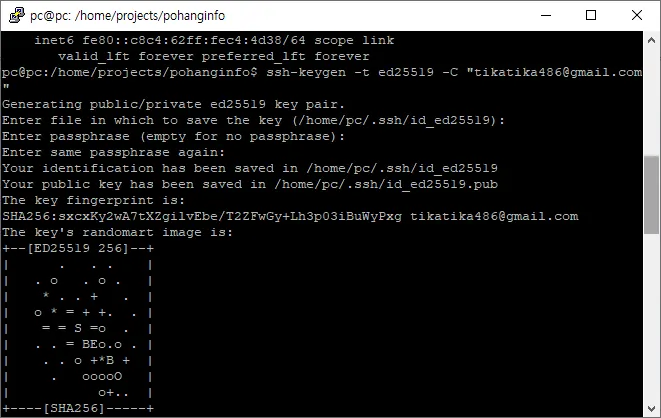
~/.ssh/id_ed25519

~/.ssh/id_ed25519.pub
Viewing the Public Key
Display the generated public key.
cat ~/.ssh/id_ed25519.pubYou'll see a long string like this:
ssh-ed25519 AAAAC3Nz...Copied the entire string.
Registering SSH Key in Forgejo
Log in to Forgejo.
Click your profile in the top right corner.
SettingsSelect this menu option.
Next, select:
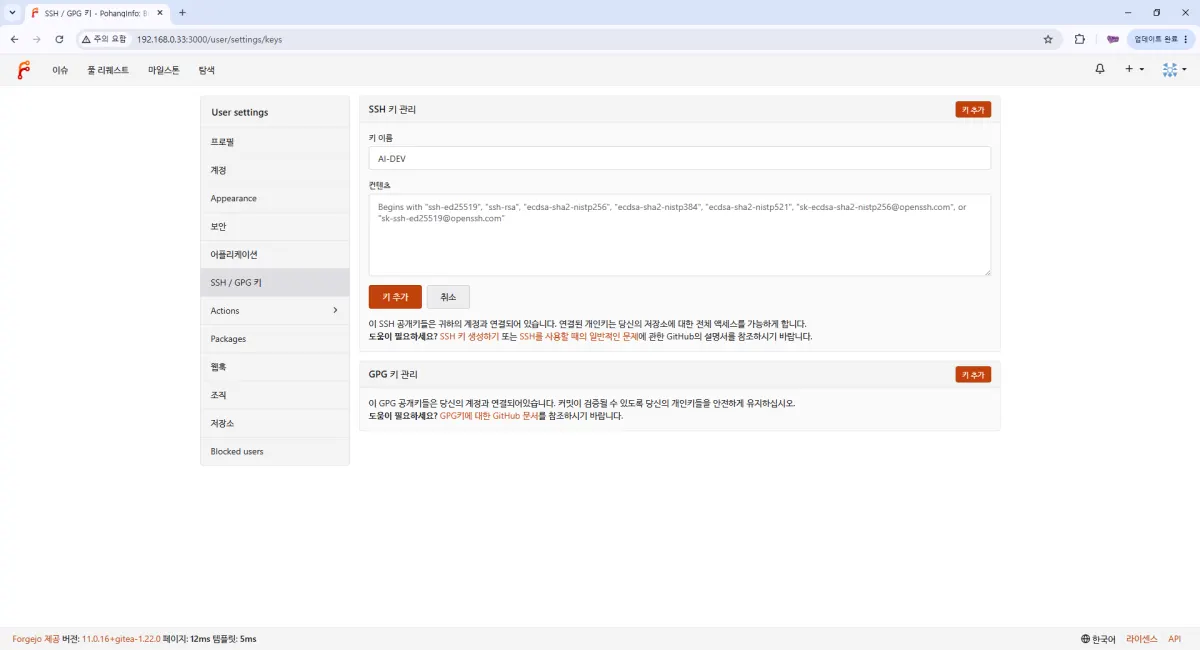
SSH / GPG KeysClick the Add Key button.
Enter a descriptive name like AI-DEV in the Title field.
Paste the public key you copied earlier into the Key field.
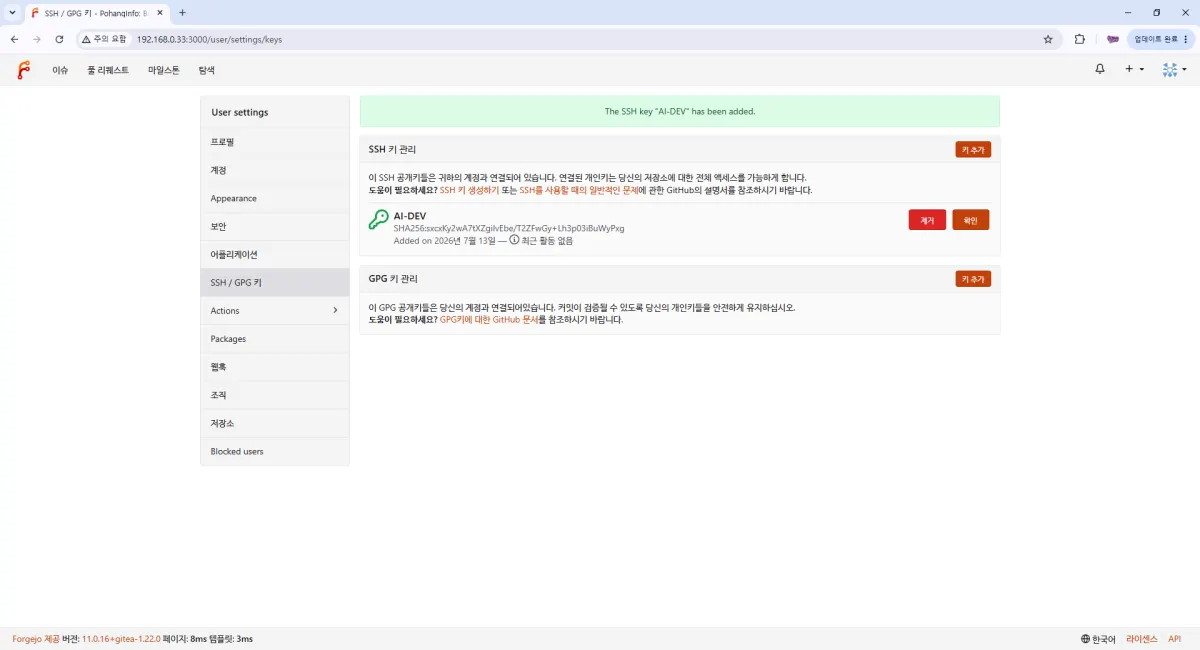
Save to complete registration.
Testing SSH Connection
After completing registration, run the following command:
ssh -T git@192.168.0.33 -p 2222The first connection will prompt you with:
Are you sure you want to continue connecting?yesType yes.
If connected successfully, you'll see:
Hi 아스라이!

You've successfully authenticated.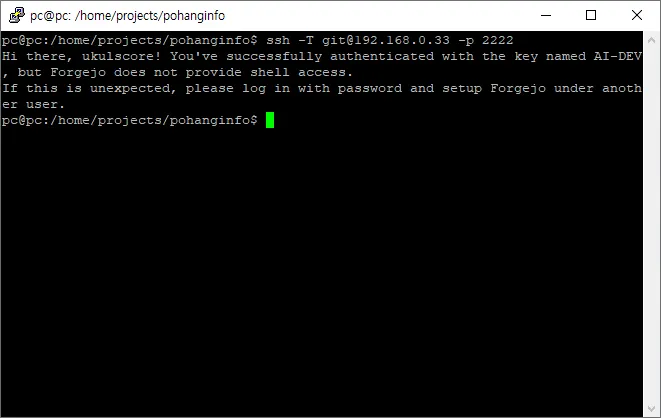
Changing the Remote URL
The repository is currently connected via HTTPS.
Check it:
git remote -vYou might see something like this:
http://192.168.0.33:3000/ukulscore/pohanginfo.gitNow switch to SSH.
git remote set-url origin ssh://git@192.168.0.33:2222/ukulscore/pohanginfo.gitVerify the change:
git remote -vIf successful, it will show:
ssh://git@192.168.0.33:2222/ukulscore/pohanginfo.git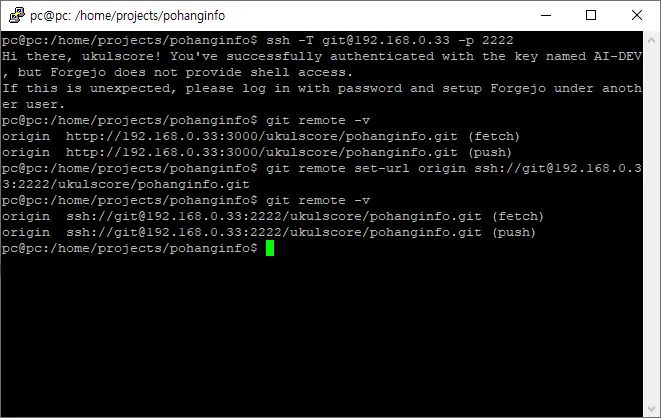
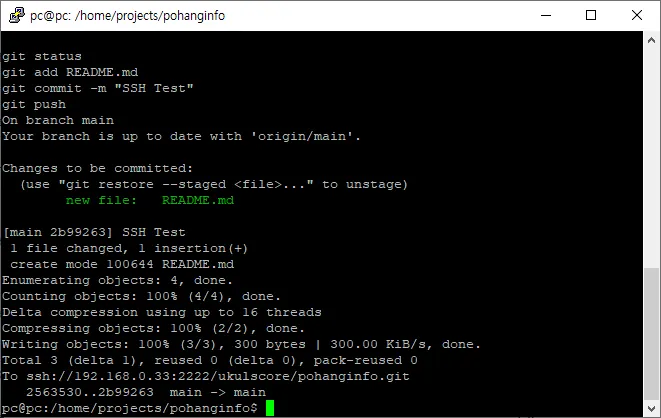
Testing the Push
To test, modify a README.md file:
sudo vi README.mdCommit the changes:
git add .

git commit -m "SSH Test"

git push
You can now push without entering an ID or password.
Verifying SSH Authentication
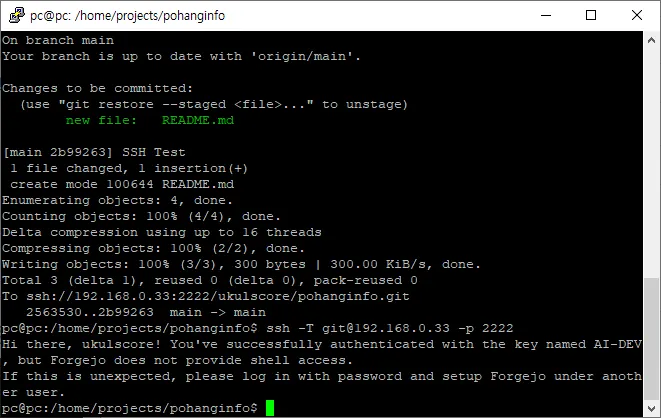
Double-check the connection:
ssh -T git@192.168.0.33 -p 2222If authenticated successfully, all future Git pushes and pulls will automatically use the SSH Key.
Future Development Environment
Your AI development environment now looks like this:
AI Development Server

/home/projects
        │
        ├── pohanginfo
        ├── blogscore
        ├── scheduler
        └── chordtool

↓

Claude Code

↓

Git Commit

↓

SSH Key Authentication

↓

Forgejo

↓

Pull to Production Server

↓

Service Update
You can now freely develop on the AI development server and securely deploy changes via Git.
Benefits of Using SSH
Using SSH Keys offers several advantages:
No need to enter passwords.
Suitable for automation.
Easier integration with Claude Code and MCP.
Faster Git Push/Pull operations.
Higher security.
In AI development environments, SSH is far more efficient than HTTPS.
Summary of This Lesson
This session covered generating an SSH Key and registering it with Forgejo to enable passwordless Git access.
Your AI development server is now securely connected to Git, allowing Claude Code to modify projects without additional authentication steps.
In the AI era, Git and SSH Keys are essential components of any modern development environment.
Next Lesson Preview
AI Development Environment Setup Project - Lesson 6
Installing Claude Code and Setting Up AI Development Environment
In the next session, we'll install Claude Code, connect it to Forgejo projects, and begin developing with AI.
We'll cover:
Claude Pro login
Installing Claude Code
Opening a project
Verifying Git integration
First AI code edit
Basics of using Claude Code
FAQ
Why use SSH instead of HTTPS for Git?
SSH allows passwordless authentication, is better for automation, integrates easily with AI tools like Claude Code and MCP, and offers higher security than HTTPS.
How do I generate an SSH key on my server?
Use the command `ssh-keygen -t ed25519 -C "your_email@example.com"` to create a new SSH key pair. Accept default settings by pressing Enter multiple times.
What is Forgejo?
Forgejo is an open-source Git service similar to GitHub, used for hosting and managing code repositories in development environments.
Korean Source
This article is an English localization of a Korean-language report from BlogScore. Original: [AI 개발환경 구축 프로젝트] 5강 SSH Key 등록으로 비밀번호 없이 Git 사용하기