
5 Things to Check Before Buying Extra RAM: DDR4 vs. DDR5 and Slot Compatibility
Check Compatibility Before Buying RAM
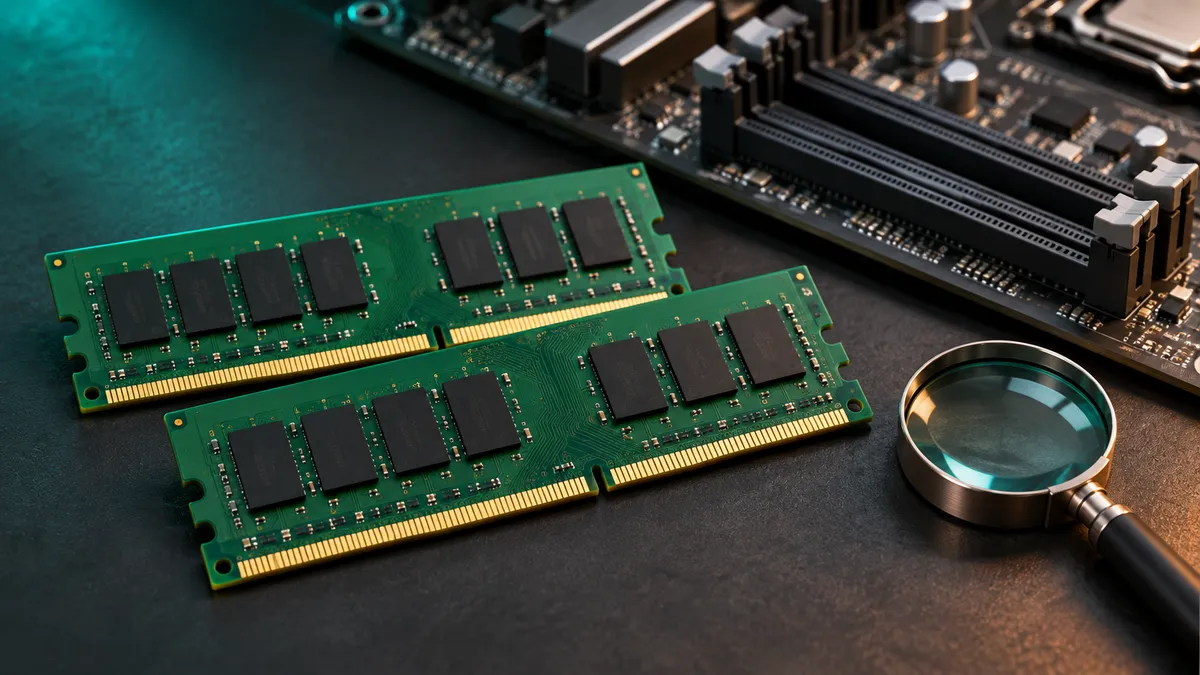
When considering buying more memory due to supply or price changes, you might wonder whether the RAM you want will work with your current system. However, even if two products are both 16GB, they may not be compatible with your PC. To avoid ordering the wrong product, check your PC model → memory specification → supported configuration → installation order before making a purchase.
This article does not recommend specific products or timing for purchases. It focuses on verifying whether parts are compatible with your computer without making definitive claims about real-time prices or supply shortages. The information was last verified on November 9, 2026.
1. Confirm Your PC and Motherboard Model Name Accurately
For pre-built PCs or laptops, find the exact model name from the label on the back of the device, purchase history, or the manufacturer's support page. For custom-built systems, check your motherboard’s model number. Even within the same product line, different models may have varying memory compatibility, so avoid ordering based only on a series name.
On the manufacturer's support page, look for:
- User manuals and service guides
- Supported memory generations and module types
- Maximum total capacity and slot-specific capacity limits
- Memory compatibility lists (QVL) and installation position guides
Kingston advises checking the motherboard documentation, QVL, and their compatibility tool when verifying speed and configuration. CPU models can also affect memory performance. Kingston's Memory Configuration Rules provide further guidance.
2. Distinguish Between DDR4 and DDR5 First
Check the product name to confirm whether it is DDR4 or DDR5. Higher numbers don't mean you can install it directly into an older system. Corsair's official FAQ explains that DDR5 has a different pin layout than DDR4, making it incompatible with DDR4 motherboards.
If you're using a PC with DDR4 and want to increase capacity, make sure to find a DDR4-compatible product for your board. If you're considering switching to DDR5, check compatibility of other components as well. Do not force modules into slots that don't fit. This information is based on Corsair's RAM FAQ.
After confirming the generation, check the module type. Compare product descriptions like DIMM or SO-DIMM with your device's specifications. Don't assume that a laptop has replaceable memory slots just because it's a laptop—verify if the model actually supports expansion.
3. Compare Total Capacity and Module Count Separately
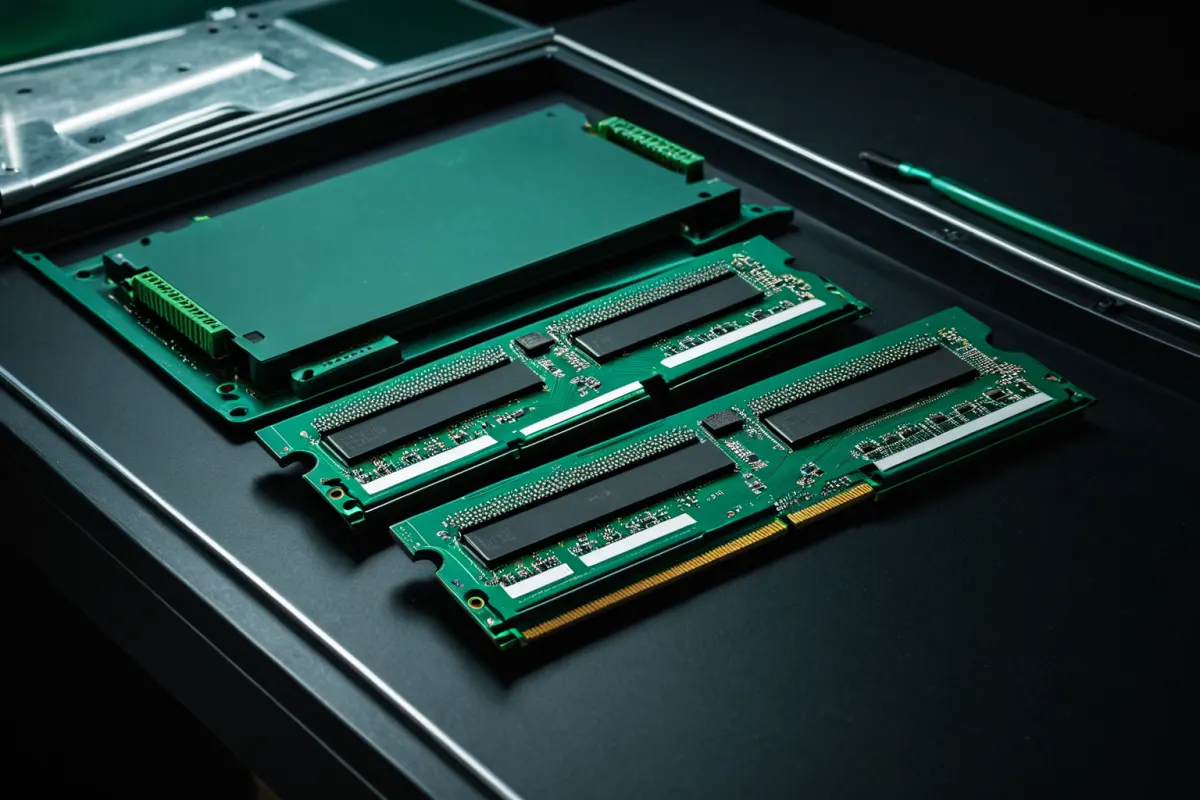
Check whether the 32GB listed in the product name refers to a single module or the total capacity of a kit (e.g., two 16GB modules). Even if final capacity is the same, the number of empty slots needed and installation configuration may differ.
Before purchasing, write down your current setup for clarity. For example, 'Currently using two 8GB modules; target total capacity 32GB.' This is an illustrative example only and does not indicate what's possible on a specific PC. Then compare with the manufacturer's documentation to see if you can add more while keeping existing modules or need to replace them.
Compatibility isn't guaranteed just because the speed matches your current modules. Corsair warns that mixing separate DDR5 kits may prevent achieving advertised performance, so they don't recommend it. This is specific to their product line and doesn't mean all combinations will fail.
4. Distinguish Between Listed Speeds and Actual Operating Conditions
Purchasing RAM with high speed listed doesn't guarantee it will operate at that speed on your PC. Kingston explains that supported speeds can vary based on CPU/chipset, module configuration, and number of modules installed.
Read product descriptions carefully to differentiate between default operating conditions and profiles like XMP or EXPO. If unsure about the environment the listed speed assumes, contact the seller or manufacturer with your exact PC model for confirmation.
Avoid assuming that filling all slots always results in faster performance. Kingston clarifies that using four modules in a dual-channel system doesn't create quad-channel capability, and increasing module count per channel can lower CPU-supported speeds. Capacity expansion and speed improvement are separate considerations.
5. Verify Installation Order and Return Policies Before Payment
The correct slot configuration depends on your motherboard's documentation. Both Kingston and Corsair advise checking the manual for proper slot placement. Avoid relying solely on internet photos or applying a specific slot number to all motherboards.
Before completing payment, ensure you've confirmed:
- Record your PC/motherboard model name and RAM product number
- Verify DDR generation, module type, capacity, and quantity against documentation
- If the product number appears on QVL, check verified capacity/quantity conditions
- Confirm return/exchange policies for compatibility issues after opening/installation
- If unsure, consult your manufacturer's service center about installation feasibility
If instability or speed issues arise after installation, don't immediately assume it's a defect. First check slot placement and default settings. Corsair suggests switching to default settings if stability problems occur while using XMP profiles. Avoid changing voltages or timings without manufacturer support.
Before ordering, ensure you can confidently answer whether this product number in these quantities will work with your model. This should be your primary consideration over discount rates.
The images in this article were AI-generated for illustrative purposes.
FAQ
Can I mix DDR4 and DDR5 RAM in the same system?
No, DDR4 and DDR5 have different pin layouts and are not compatible with each other. Using a DDR5 module on a DDR4 motherboard will not work.
What is QVL?
QVL stands for Qualified Vendor List, which lists memory modules that have been tested and verified to work with specific motherboards.
Do I need to fill all RAM slots for optimal performance?
No, filling all slots doesn't necessarily mean better performance. The number of modules per channel can affect CPU-supported speeds, so consult your motherboard manual for recommended configurations.
Korean Source
This article is an English localization of a Korean-language report from BlogScore. Original: RAM 추가 구매 전 확인할 5가지: DDR4·DDR5와 슬롯 호환성