
JavaScript Form Validation Basics for Web Developers
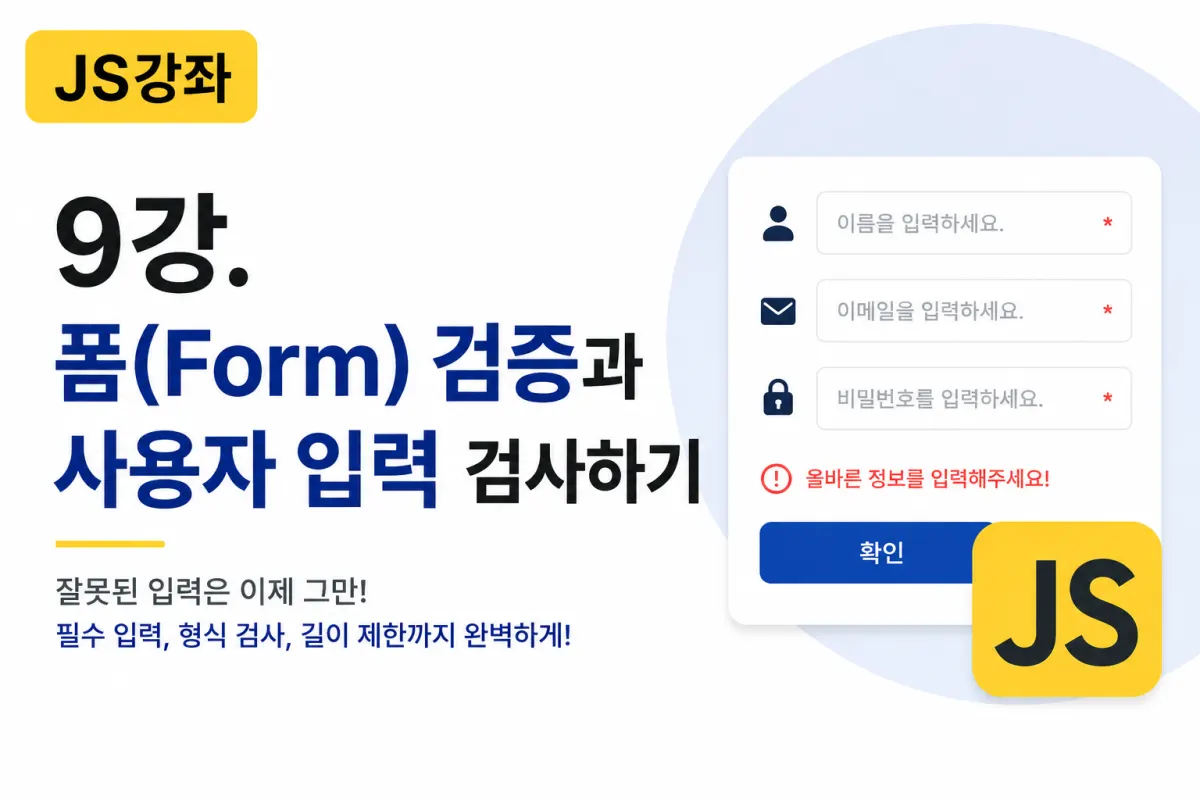

What Is a Form?
A form in web development refers to any user input interface on a website.
Examples include:
Login
Sign-up
Create a post
Add a comment
Contact us
Place an order
Edit profile information
You've likely used these features at some point when interacting with web services.
In HTML, forms are created using the <form> tag.
Why Is Form Validation Necessary?
You shouldn't assume user input is always correct.
For example:
Missing name field
Incorrect email format
Password too short
Text entered where numbers are required
If such data is saved without validation, errors or operational issues may occur.
This is why it's necessary to inspect data before sending it to the server.
This process is called form validation.
Creating a Basic Form
Let's start by creating a simple sign-up form.
<form id="joinForm">

    <label>Name</label>
    <input type="text" id="name">

    <label>Email</label>
    <input type="text" id="email">

    <label>Password</label>
    <input type="password" id="password">

    <button type="submit">
        Sign Up
    </button>

</form>
This form currently has no validation functionality.
Retrieving Input Values
To get the user's input, use the value property.
let name = document.querySelector("#name").value;

console.log(name);
The value entered by the user will be displayed.
Form validation typically involves checking these values.
Checking for Empty Fields
The most basic validation checks if fields are empty.
let name = document.querySelector("#name").value;

if(name === ""){

    alert("Please enter a name.");

}
However, users might only enter spaces.
In that case, use trim().
if(name.trim() === ""){

    alert("Please enter a name.");

}
This removes leading and trailing spaces before validation.
Preventing Form Submission
Forms are typically submitted to the server when the submit button is clicked.
To prevent submission until validation completes, use:
let form = document.querySelector("#joinForm");

form.addEventListener("submit", function(e){

    e.preventDefault();

});
The preventDefault() method stops the default submission behavior.
Name Length Validation
You can also check input length.
if(name.length < 2){

    alert("Name must be at least 2 characters.");

}
This is commonly used for sign-up or post titles.
Email Format Validation
An email address must include an @ symbol.
A simple validation method:
let email = document.querySelector("#email").value;

if(!email.includes("@")){

    alert("Invalid email format.");

}
In professional settings, regular expressions are often used, but beginners should first understand the basic principles.
Password Length Validation
Passwords must not be too short for security reasons.
let password = document.querySelector("#password").value;

if(password.length < 8){

    alert("Password must be at least 8 characters.");

}
This is a critical security check.
Password Confirmation Validation
During sign-up, passwords are often entered twice for confirmation.
HTML:
<input type="password" id="password">

<input type="password" id="password2">
JavaScript:
let pw1 = document.querySelector("#password").value;
let pw2 = document.querySelector("#password2").value;

if(pw1 !== pw2){

    alert("Passwords do not match.");

}
Validating Numeric Input
For example, when entering age:
let age = document.querySelector("#age").value;

if(isNaN(age)){

    alert("Please enter a number.");

}
The isNaN() function checks if input is numeric.
Checkbox Validation
You should also verify checkbox selections, such as terms of service acceptance.
HTML:
<input type="checkbox" id="agree">
JavaScript:
let agree = document.querySelector("#agree");

if(!agree.checked){

    alert("Please accept the terms.");

}
Select Field Validation
<select id="country">

    <option value="">Select</option>

    <option value="kr">South Korea</option>

</select>
JavaScript:
let country = document.querySelector("#country").value;

if(country === ""){

    alert("Please select a country.");

}
Real-Time Validation During Input
Many websites provide validation as users type.
let name = document.querySelector("#name");

name.addEventListener("input", function(){

    console.log(name.value);

});
This approach is common in modern web applications.
Displaying Error Messages on Screen
Instead of using alerts, display error messages directly on the page for better user experience.
HTML:
<p id="error"></p>
JavaScript:
document.querySelector("#error").textContent = "Please enter a name.";
This improves user experience.
Creating Validation Functions
In professional development, create reusable functions for validation.
function isEmpty(value){

    return value.trim() === "";

}
Usage:
if(isEmpty(name)){

    alert("Please enter a name.");

}
This makes code cleaner and more maintainable.
Complete Validation Example
form.addEventListener("submit", function(e){

    e.preventDefault();

    let name = document.querySelector("#name").value;
    let email = document.querySelector("#email").value;

    if(name.trim() === ""){

        alert("Please enter a name.");
        return;

    }

    if(!email.includes("@")){

        alert("Please check your email.");
        return;

    }

    alert("Validation complete");

});
Professional development often follows this pattern.
Server-Side Validation Is Also Essential
JavaScript validation is for user convenience, but it can be bypassed by users.
Therefore, professional services must implement:
Client-side validation using JavaScript
Server-side validation (e.g., PHP)
This two-step process ensures security. This is known as client-side validation and server-side validation.
Where Is Form Validation Used in Practice?
Form validation appears on almost every website that collects user input.
Examples include:
Sign-up pages
Login screens
Create posts or articles
Add comments
Contact forms
Order forms
Password change pages
Admin panels
It's a fundamental skill every web developer should master.
Key Takeaways From This Lesson
Todays lesson covered JavaScript form validation techniques. Key points to remember:
Form validation prevents incorrect input from being submitted.
Use
valueto retrieve user input.Use
trim()to remove leading and trailing spaces.Use
preventDefault()to stop form submission during validation.Check character count with
length.Verify email format using
includes().Check checkbox status with
checked.Always perform server-side validation as well.
Conclusion
Form validation is a crucial feature that enhances both website stability and user experience. It's essential for any web service, whether it's sign-up forms, login pages, forums, or e-commerce sites.
Try the examples from this lesson by entering different values for name, email, and password to see how the validation works.
In our next lesson, we'll explore JavaScript Date objects and timers (setTimeout, setInterval)—essential tools for handling time-based functionality in real-world applications.
FAQ
Why is form validation important?
Form validation ensures user input is correct before submission, preventing errors and improving security. It's essential for both user experience and system reliability.
Can JavaScript validation be bypassed?
Yes, users can disable or modify JavaScript to bypass client-side validation. That's why server-side validation is also required for secure applications.
Korean Source
This article is an English localization of a Korean-language report from BlogScore. Original: [JS 강좌] 9강 - 폼(Form) 검증과 사용자 입력 검사하기