
Implementing Online Presence in Messenger Apps: A Step-by-Step Guide
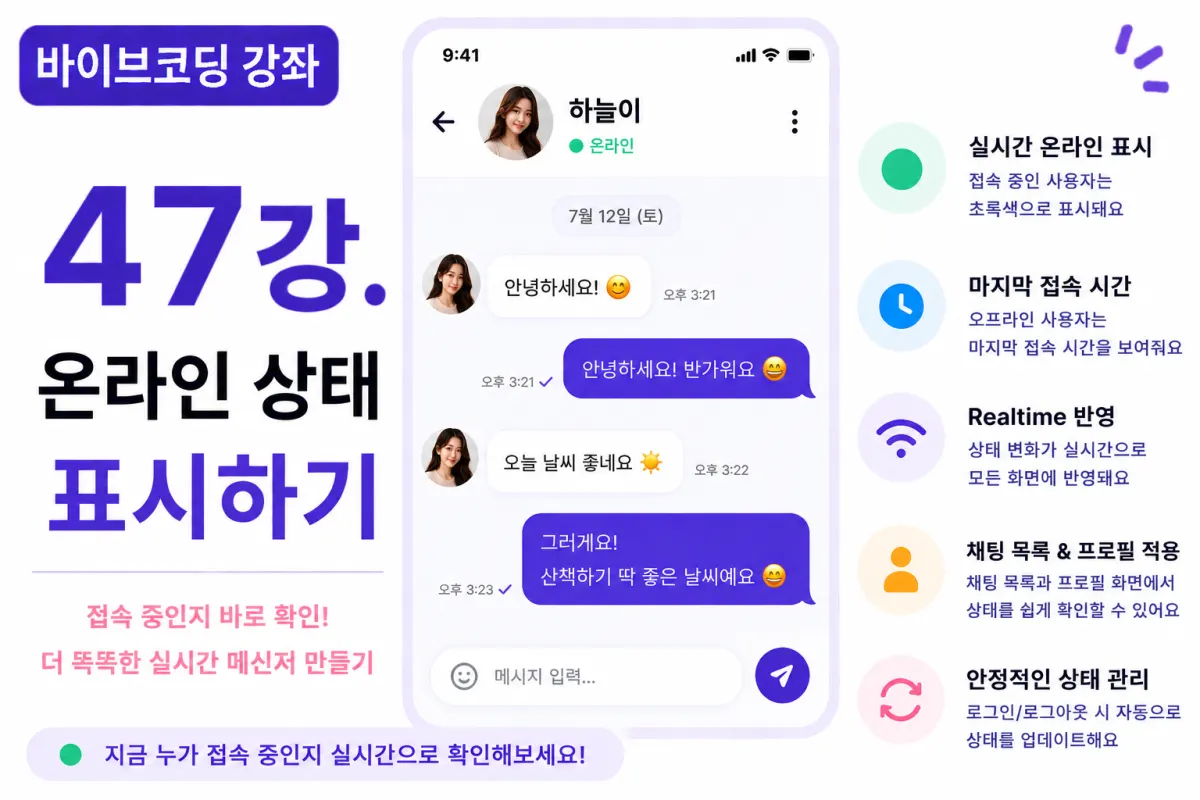
What You'll Learn in This Lesson
In the previous lesson, we implemented the read receipt feature.
Now users can check if their message has been read by the recipient.
In this lesson, we'll implement the online presence (Online Status) feature commonly seen in messaging apps.
We'll cover these topics together:
Storing online status
Real-time status updates
Managing last seen timestamps
UI display implementation
Performance optimization
After completing this lesson, your messaging app will function more like a real-world service.
What is Online Presence?
Online presence shows whether a user is currently using the app.
Typically displayed as:
🟢 Online
⚪ Offline
This allows users to easily see if their contact is active.
Last Seen Feature
When offline, the last seen timestamp appears instead.
For example:
5 minutes ago

Today

Yesterday
This helps users understand when their contact was last active.
Database Design
Add two columns to the Profiles table:
is_online

last_seen
is_online: Current status (Boolean)
last_seen: Last active timestamp
Update these values during login and logout events.
Requesting Help from Cursor AI
First, ask Cursor AI to manage user online status using Supabase Realtime:
Use Supabase Realtime to manage users' online status.

Set as Online on login,

Offline on logout.

Also store last seen timestamp.
The AI provides a structure for presence management, including error handling.
Online Status on Login
When a user logs in:
is_online = true
Update the database and immediately notify other users via Realtime.
Offline Status on Logout
When closing the app or logging out:
is_online = false
Save the current time to last_seen.
Displaying Status on Profile
Show a small green circle next to profile pictures:
If online, display:
🟢 Online
If offline, show the last seen timestamp.
Displaying Status in Chat List
Show online status in chat lists as well.
This improves user experience since active users are more likely to respond promptly.
Real-time Updates
When a contact logs in or out, Realtime events trigger automatically.
Status updates appear immediately without requiring page refreshes.
This is the advantage of real-time messaging applications.
Potential Uses for Presence Feature
Online status can be used beyond chat:
Priority display for recommended users
Showing currently active users
Searching online members
This lesson focuses only on online/offline status implementation.
Improving with Cursor AI
After completing the feature, ask Cursor AI:
Improve the Online Presence feature for greater stability.
The AI suggests improvements like:
Automatic status changes
Reconnection handling
Exception handling
Mobile Considerations
On mobile devices, apps may move to the background.
Whether to immediately mark as offline or wait a period depends on service policies.
This project uses logout events as the trigger for status changes.
Performance Optimization
Presence data changes frequently, so:
Only trigger Realtime events when status actually changes.
Avoid unnecessary updates to optimize performance.
Testing Procedure
Test the feature using these steps:
Run two browser instances
Login to both accounts
Verify online status display
Log out of one account
Check last seen timestamp
Confirm real-time updates
If all works correctly, the feature is complete.
GitHub Commit Message
Ask Cursor AI to generate a commit message:
Create a commit message for Online Presence implementation.
Clear, feature-specific commit messages are important for project management.
Additional Features in Production
Real-world services often include these additional features:
Typing indicator ("Typing...")
Call status display
Away status
Do Not Disturb mode
This project implements only online/offline status.
Enhanced Messaging Experience
After this lesson, users can view contact status in real-time.
The app now provides an experience nearly identical to mainstream messaging services.
Next Lesson Preview
In the next lesson, we'll implement the typing indicator feature.
This will show "Typing..." in real-time when a contact is composing a message,
creating a more natural conversation flow.
Conclusion
We've implemented online presence functionality including real-time status updates, last seen timestamps, and Realtime synchronization.
This significantly improves the messaging app's completeness.
The next lesson will focus on adding a typing indicator for even more natural real-time chat experiences.
FAQ
What does 'Online Presence' mean in messaging apps?
It's the feature that shows whether a contact is currently active on the app, displayed as 'Online' or 'Offline'.
How does the 'Last Seen' timestamp work?
When offline, it shows when the user was last active (e.g., '5 minutes ago', 'Today', 'Yesterday').
Korean Source
This article is an English localization of a Korean-language report from BlogScore. Original: [바이브코딩 강좌] 47강. 온라인 상태(Online Presence) 표시하기