
Implement File Sharing in Your Messenger App: A Step-by-Step Guide
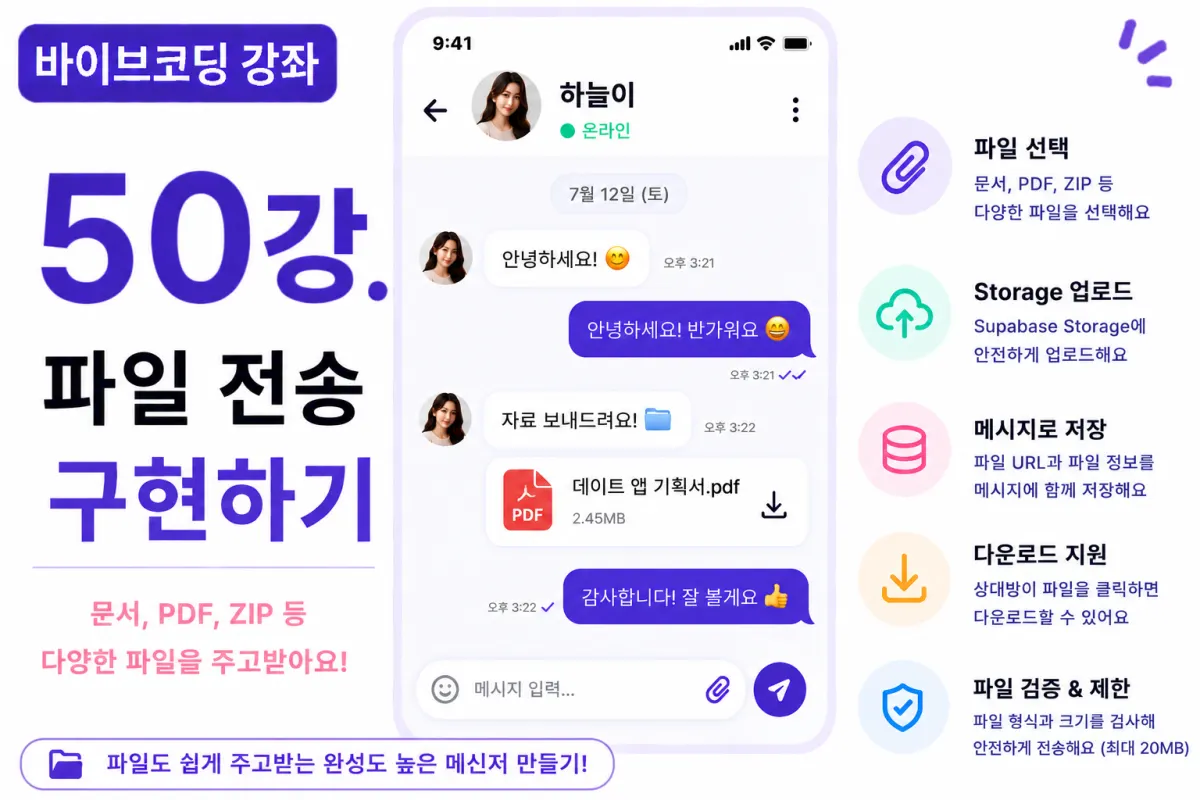
What You'll Learn in This Lesson
Last lesson, we implemented image sharing functionality.
Now users can freely share photos as well.
In this lesson, we'll build the file sharing feature commonly used in messaging apps.
You'll learn how to implement these key components:
Selecting files
Uploading to Storage
Saving to Database
Downloading files
Displaying upload progress
Security measures
By the end of this lesson, you'll be able to share documents and compressed files freely.
Why File Sharing Is Important
In chats, users often share more than just photos—they exchange various documents regularly.
Common file types include:
PDFs
Word documents
Excel spreadsheets
ZIP files
This is nearly a must-have feature in professional messaging applications.
Storage Structure
We'll store files in Supabase Storage.
Create a bucket named:
chat-files
Organize files by chat room folders for better management.
Requesting Help from Cursor AI
First, ask Cursor AI to implement the file upload feature using Supabase Storage:
Implement file upload functionality using Supabase Storage.

After upload completes,
save the file URL with the message.
The AI will suggest both upload and download code.
Selecting Files
Add an 📎 icon next to the input field.
When clicked, it opens a file selection dialog.
After selection, immediate upload begins.
Supported File Formats
This project supports these formats:
PDF
DOCX
XLSX
PPTX
ZIP
TXT
New formats can be added easily as needed.
File Size Limit
Large files take longer to upload.
This project limits uploads to a maximum of 20MB.
If exceeding this limit, the upload stops and an alert message appears.
MIME Type Validation
Checking only file extensions isn't secure.
Therefore, we'll validate MIME types as well.
Unsupported formats will be blocked from uploading.
Upload Progress Display
Show progress during uploads:
Uploading file...
Or display a percentage to help users track status.
Saving Messages
After upload completes, save the message with the Storage URL.
The chat screen will display the filename and appropriate icon.
Download Functionality
When someone clicks a file:
Downloads begin using browser's default download functionality—simple to implement.
File Icon Display
Show different icons based on file type for easy identification:
📄 PDF
📊 Excel
📑 Word
📦 ZIP
This helps users quickly recognize file types.
Improving with Cursor AI
After completing the feature, ask Cursor AI:
Improve the file sharing functionality for better security.
The AI suggests enhancements like:
Virus scanning integration
File validation
Permission management
Security Considerations
Restrict downloads to matching users only.
Combine with Storage policies (RLS) for enhanced security.
Performance Optimization
Don't pre-load file lists—start downloads when users click.
This reduces network usage significantly.
Testing Procedure
Test in this order:
Upload PDF
Storage save
Database save
Realtime display
Download verification
File size limit check
If all steps work correctly, the file sharing feature is complete.
GitHub Commit Message
Ask Cursor AI for a commit message:
Create a commit message appropriate for implementing file sharing functionality.
Well-structured commits are essential for collaboration and maintenance.
Additional Features in Production
Real-world services often include:
File preview
Download count display
File expiration dates
Virus scanning
Larger file split uploads
This project focuses on implementing basic file sharing functionality.
Your Chat App Just Got More Powerful
After this lesson, users can share documents and compressed files freely—just like professional messaging apps.
Project Progress
By Lesson 50, we've implemented these key features:
User registration and login
Profile management
Interest selection
Likes and matching
Chat room creation
Real-time chat
Read receipts
Online status
Typing indicators
Image sharing
File sharing
The core functionality of our service is now mostly complete.
Next Lesson Preview
In the next lesson, we'll implement push notifications (Push Notification).
This will enable instant browser and mobile alerts for new messages or matches.
Conclusion
We've implemented file sharing functionality in this lesson.
Through Supabase Storage uploads, file downloads, MIME type validation, and security measures, we've built a professional-level file sharing feature for messaging apps.
Congratulations on completing Lesson 50—your hard work is paying off!
In upcoming lessons, we'll add push notifications and operational features to build an app ready for real-world deployment.
FAQ
Why limit file uploads to 20MB?
Large files increase upload time and server load. The 20MB limit balances usability with performance.
How does MIME type validation improve security?
Checking both extensions and MIME types prevents malicious files from being uploaded under false file names.
Korean Source
This article is an English localization of a Korean-language report from BlogScore. Original: [바이브코딩 강좌] 50강. 파일 전송 기능 구현하기