
HTML Basics: Creating Your First Web Page

How Is an HTML Document Created?
When starting to build a website, the first thing you write is an HTML document.
Browsers read HTML files to construct the webpage display.
However, simply writing content doesn't automatically create a functional webpage.
An HTML document must follow a specific basic structure.
At first, it might feel unfamiliar, but after writing it a few times, it becomes natural.
Creating Your First HTML Document
First, create a new file in VS Code.
Save the file with this name:
index.html
The first page of a website is typically served by an index.html file.
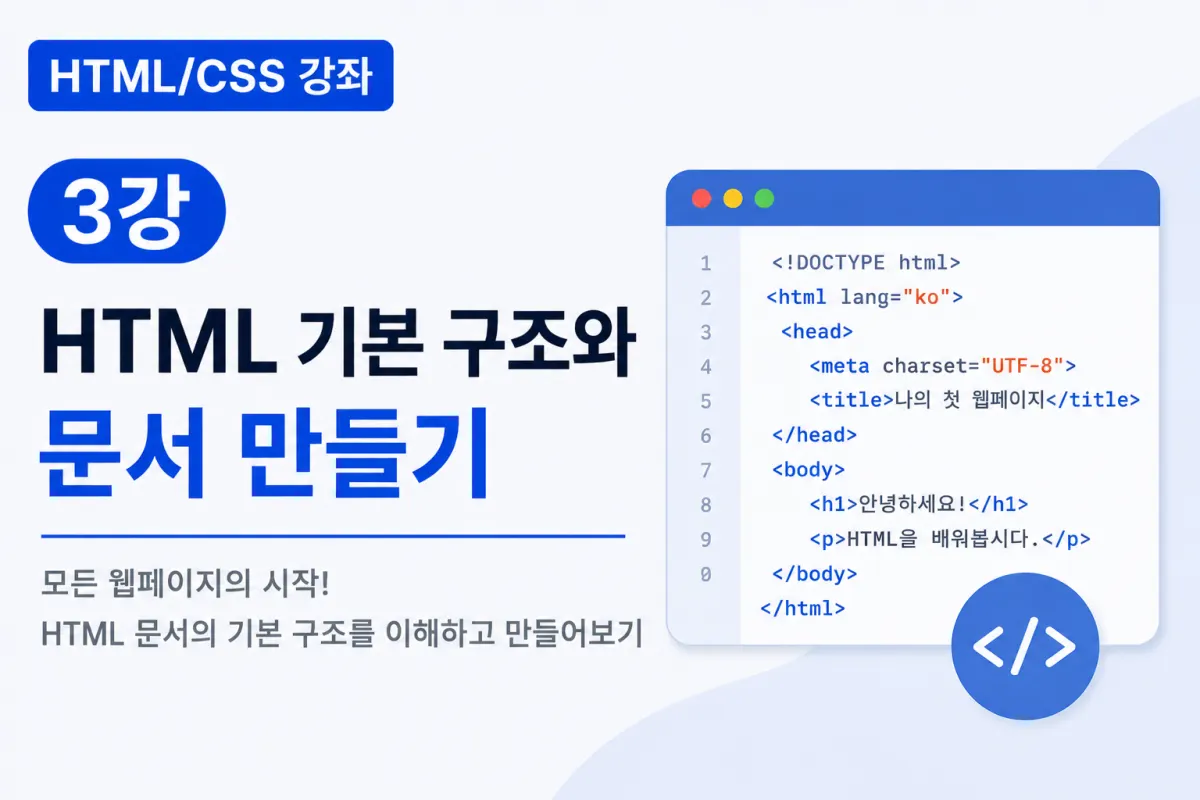
Now, write the basic structure as follows:
<!DOCTYPE html>
<html lang="ko">

<head>
    <meta charset="UTF-8">
    <title>My First Webpage</title>
</head>

<body>

</body>

</html>
This code represents the most basic form of an HTML document.
What Is DOCTYPE?
The first line always contains this code:
<!DOCTYPE html>
This tells the browser, "This document is an HTML5 document."
In HTML5, nearly all webpages include this code at the beginning.
The html Tag
Next comes the <html> tag:
<html lang="ko">

</html>
This tag wraps the entire HTML document.
The lang="ko" attribute indicates that the document's primary language is Korean.
For English websites, you would use lang="en".
The head Tag
The head section stores information about the webpage.
<head>

</head>
This typically includes:
Character encoding
Webpage title
CSS links
JavaScript links
Search engine information
The content inside head usually isn't visible on the screen.
You can think of it as a settings area for your webpage.
meta charset
Mostly, this code appears in the head:
<meta charset="UTF-8">
UTF-8 is a character encoding that ensures Korean text displays correctly.
Without this, Korean characters might appear broken, so it's important to include it.
The title Tag
The title displayed in the browser tab is specified with the <title> tag:
<title>HTML & CSS Web Design Basics</title>
This title is also important for search engines.
When creating a website, it's good practice to write a descriptive title that accurately reflects the content.
The body Tag
All content displayed on the screen goes inside the <body> tag.
<body>

</body>
For example:
<body>

    <h1>Hello.</h1>

    <p>This is my first webpage.</p>

</body>
The browser displays this content exactly as written.
Reviewing the Basic HTML Structure
Now, let's summarize what we've learned:
<!DOCTYPE html>
<html lang="ko">

<head>

    <meta charset="UTF-8">

    <title>First Webpage</title>

</head>

<body>

    <h1>Getting Started with HTML</h1>

    <p>Learning HTML.</p>

</body>

</html>
At first, it may seem lengthy, but this structure is used for almost all HTML files going forward.
Testing in a Browser
After saving the file, run Live Server or open it directly in your browser.
You should see:
The browser tab displays
First WebpageThe body contains a heading and paragraph
This is one of HTML's key advantages: you can see the results immediately after writing code.
HTML Is Read Top to Bottom
Browsers read HTML code from top to bottom.
For example:
<h1>First Heading</h1>

<p>First paragraph</p>

<p>Second paragraph</p>
The content appears on the screen in the order it was written.
Therefore, keeping your code well-organized is important for readability.
The Importance of Indentation
You can run HTML without indentation, but it's harder to read:
<body><h1>HTML</h1><p>Learning</p></body>
Compare that to:
<body>

    <h1>HTML</h1>

    <p>Learning</p>

</body>
With proper indentation, the structure is much clearer.
Code formatting is a crucial habit in professional development.
Creating HTML Structure Quickly with Emmet
In VS Code, you can automatically generate the basic HTML structure.
Type ! in a new HTML file and press the Tab key to auto-complete the template.
This is one of the most commonly used features among web developers.
Common Mistakes for Beginners
1. Forgetting to Write DOCTYPE
In modern HTML documents, it's best to include this line at the beginning.
2. Writing Content Outside of body
All visible content must be inside the <body> tag.
3. Skipping the title Tag
A missing title makes the browser tab empty and hurts SEO (Search Engine Optimization).
4. Forgetting to Close Tags
In HTML, it's important to use both opening and closing tags consistently.
Key Takeaways from This Lesson
HTML documents follow a specific basic structure.
<!DOCTYPE html>declares the document as HTML5.<html>wraps the entire document.The
<head>contains webpage configuration information.<meta charset="UTF-8">ensures Korean text displays correctly.<title>sets the browser tab title.The
<body>contains all visible content on the screen.VS Code's Emmet feature lets you quickly create the basic HTML structure.
In Closing
This lesson covered the basic structure of an HTML document and how to create your first webpage using essential tags like DOCTYPE, html, head, and body.
Understanding this structure will help you write organized code for any future webpages you build.
In the next lesson, we'll learn about heading, paragraph, list, link, and image tags, adding more content to your webpage. You'll begin experiencing how a website gradually comes together through these steps.
FAQ
Why is DOCTYPE important in HTML?
DOCTYPE declares the document type as HTML5, ensuring browsers render it correctly.
Where should I place my website's title?
The title tag goes inside the head section and appears in browser tabs.
Korean Source
This article is an English localization of a Korean-language report from BlogScore. Original: [Html/CSS 강좌] 3강 HTML 기본 구조와 문서 만들기