
How to Clean Your Graphics Card: Dust Removal and Performance Tips
Preparing Your Graphics Card Cleaning Tools
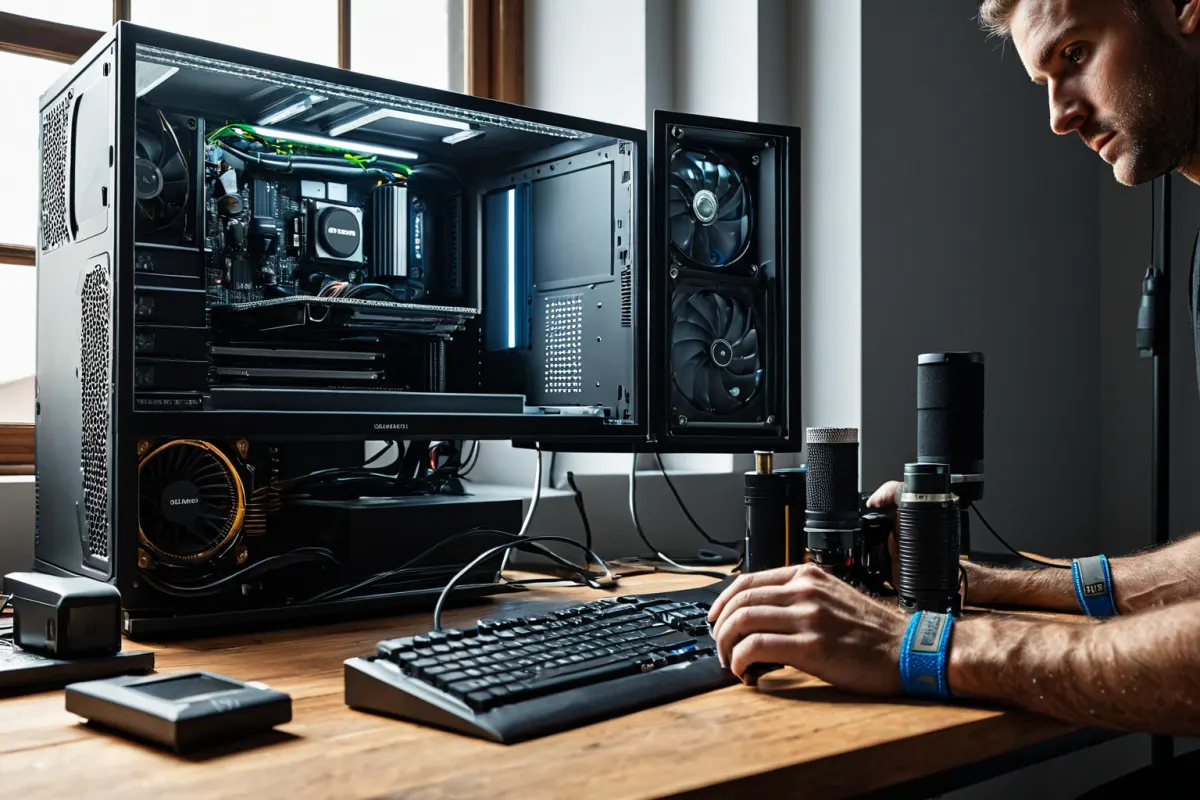
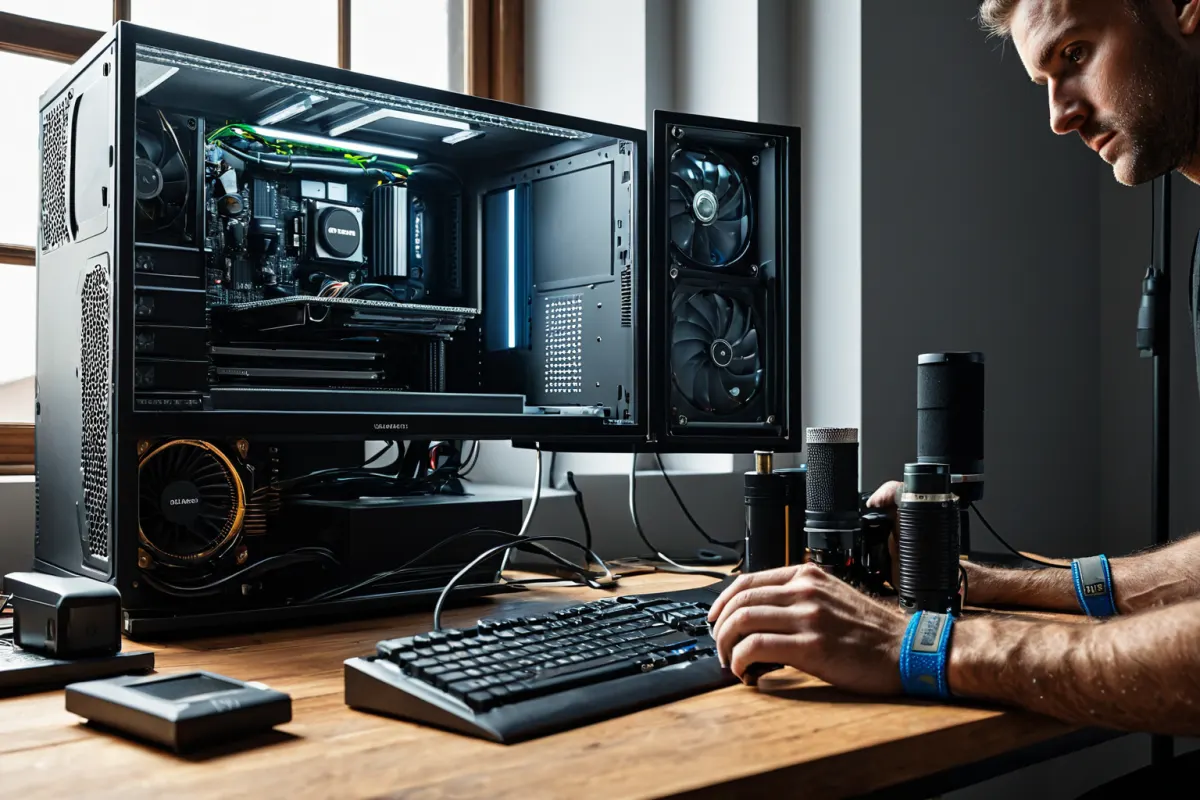
Regularly cleaning your graphics card with the right tools is essential. Before starting, make sure to turn off your computer completely, unplug all cables, and gather your supplies: an air compressor or a soft brush. An air compressor is highly effective for removing dust, while a soft brush helps gently sweep away debris. Never use water, household sprays, or general cleaning products, as they can damage the electrical circuits on your graphics card. Always ensure you're working in a safe environment with the power fully disconnected.
Dust Removal Procedure for Graphics Cards
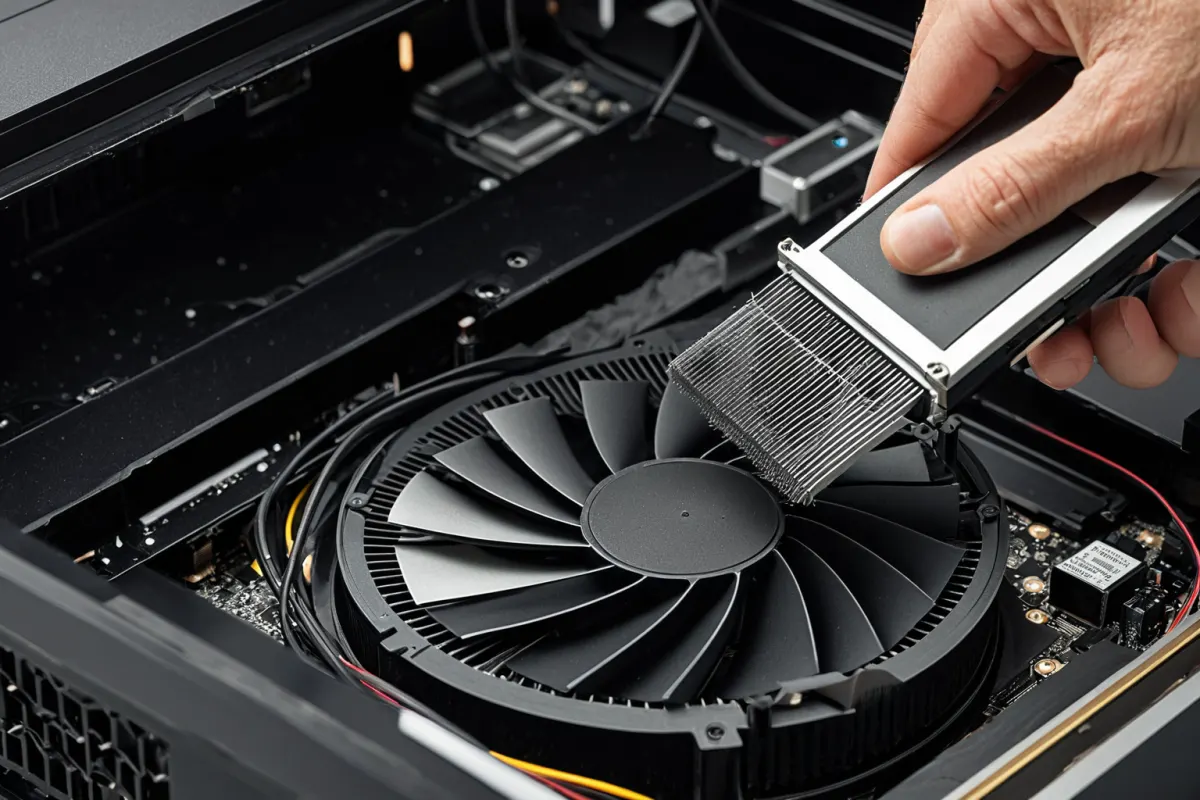
Dust buildup can lead to reduced performance and overheating risks. Gently remove dust from your graphics card’s cooling fan and heat sink, then use an air compressor to clean deeper into the internal components. Here’s how to do it: First, disconnect your computer from power, carefully remove the graphics card, and start cleaning from the dirtiest areas. When using an air compressor, hold it at a 30-degree angle and move it quickly—never let it directly touch any parts of the card. After cleaning, allow the card to dry completely before reattaching it. If dust accumulates too much, your cooling fan may not function properly, leading to overheating and performance loss, so regular maintenance is key.
Recommended Cleaning Schedule
Your cleaning frequency depends on your environment. In dusty indoor spaces, clean every 3–6 months; in well-ventilated areas like offices or libraries, every 6–12 months is sufficient. If you smoke indoors or have lots of carpets and furniture, dust builds up faster—consider shortening the interval to every 3 months. Even if you don’t use your computer often, dust can still accumulate, so regular check-ins are important.
Essential Tips for Laptop Users
Laptops have fixed graphics cards that are hard to clean on your own. To prevent dust buildup, use a cooling pad or stand to improve airflow and reduce heat. For gaming laptops, maintaining peak performance is crucial—regular cleaning helps keep the internal environment optimal until newer models come out. Since opening a laptop’s internals can be risky, it’s best to consult a professional for thorough maintenance.
Performance Benefits of Regular Cleaning
Cleaning your graphics card regularly improves cooling efficiency, reduces overheating risks, and helps maintain stable performance. By preventing dust buildup, you extend the lifespan of your graphics card while also boosting overall system speed. Without regular cleaning, fans may fail to operate properly due to accumulated dust, causing overheating and a drop in performance—so routine maintenance is vital for keeping your entire system running smoothly.
Frequently Asked Questions
What tools do I need to clean my graphics card?
Use an air compressor, a soft brush, and a safe spray (water-free).
How often should I clean my graphics card?
Clean every 3–12 months depending on your environment.
Can I clean the graphics card in my laptop myself?
Laptops have complex internal structures, so it’s safer to consult a professional for cleaning.
References
- Optimizing Existing GPU Performance Instead of Replacing Graphics Cards (www.digitaltoday.co.kr)
- [Kim Pyeong-hee Column] You Can’t Win with Visible Stock (www.ajunews.com)
- [Financial Sector Updates] KB Asset Management Renovates AI-Integrated Homepage (www.businessplus.kr)
Find more articles on similar topics in one place.
View Related ArticlesFAQ
What tools do I need to clean my graphics card?
Use an air compressor, a soft brush, and a safe spray (water-free).
How often should I clean my graphics card?
Clean every 3–12 months depending on your environment.
Can I clean the graphics card in my laptop myself?
Laptops have complex internal structures, so it’s safer to consult a professional for cleaning.
Korean Source
This article is an English localization of a Korean-language report from BlogScore. Original: 그래픽카드 청소 방법: 먼지 제거 및 성능 향상 팁