
Email Verification Implementation in Supabase Auth
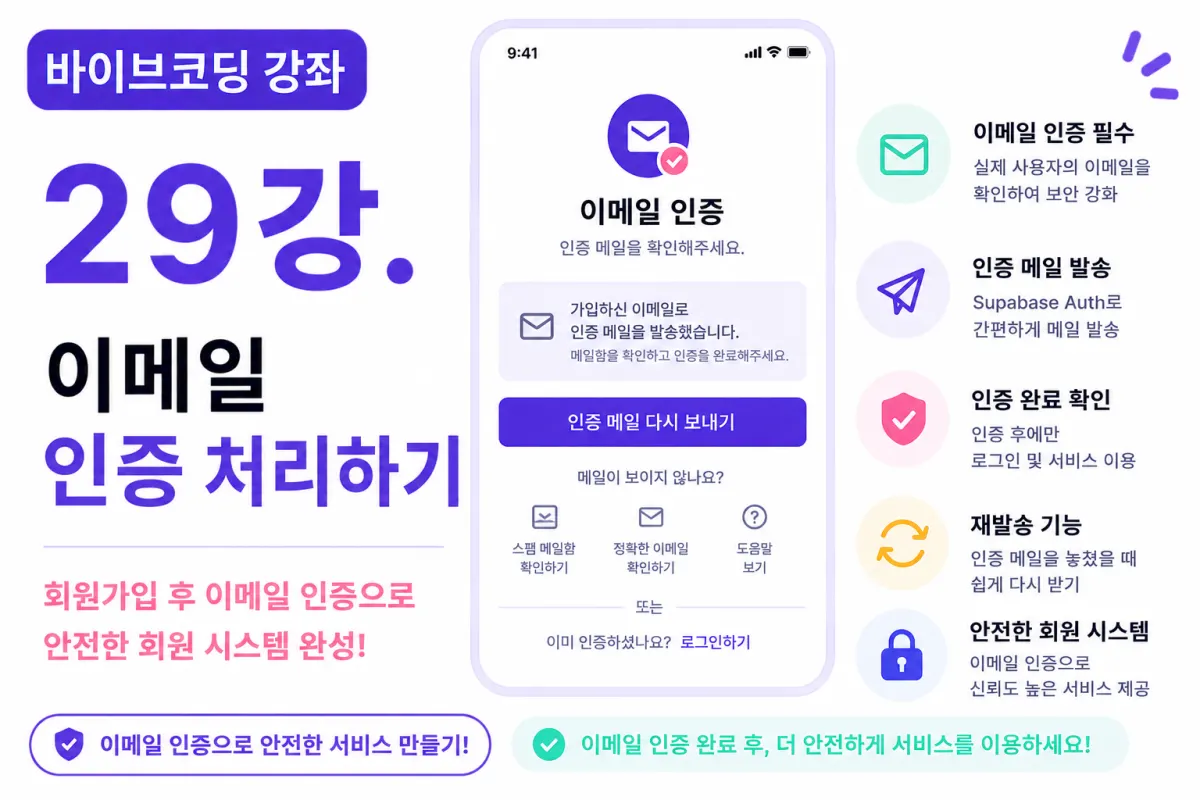
What You'll Learn in This Lesson
In the previous lesson, we implemented:
User registration
Login functionality
Logout feature
However, one critical feature remains: Email Verification (Email Verification).
In real-world services, users often must complete email verification before accessing the platform.
This lesson will implement:
Email verification activation
Sending verification emails
Checking verification status
Login restrictions for unverified accounts
Completion processing after verification
Let's complete this authentication system to professional standards.
Why Email Verification Is Necessary
If users could access the service immediately after registration, several issues might arise:
For example:
Non-existent email addresses
Email typos
Temporary email services
Automated sign-up bots (Bots)
Email verification is the most fundamental security measure to confirm a real user has registered.
Supabase Auth's Email Verification Feature
Supabase provides email verification functionality out of the box.
You don't need to set up your own email server to send verification emails automatically after registration.
Simply activate the setting, and it works immediately.
Configuring the Dashboard
First, open your Supabase Dashboard.
Navigate to Authentication settings and check Email Provider configuration.
Ensure these options are enabled:
Email login enabled
Email verification required
After configuration, new users will automatically receive a verification email.
Requesting Code from Cursor AI
Now ask Cursor AI to implement the feature with this request:
Implement email verification for user registration in Supabase Auth.

After successful registration, display a message informing users to click the verification link in their email.
The AI will also suggest welcome messages to show users after successful registration.
Registration Confirmation Screen
After completing registration, don't immediately log the user in. Instead, display this confirmation screen:
Registration completed successfully.

Please click the verification link sent to your email and then log in.
This makes it clear what users need to do next.
Verifying Email
The user checks their inbox for the verification email from Supabase.
The email contains a link to complete verification.
Clicking the link completes verification and opens the browser.
Handling Unverified Accounts
If users try to log in before verifying their email, the service should block access:
Please complete email verification before logging in.
This protects both users and the platform.
Checking Verification Status
After login, you can check if a user's email is verified.
For example, ask Cursor AI:
Write code to check whether the currently logged-in user has completed email verification.
The AI will generate code to verify a user's status.
Verified Users
After successful email verification, users can access all features:
Home screen
Profile settings
Chat functionality
The user is now a verified member of the service.
Resending Verification Emails
Users might accidentally delete verification emails or not receive them. In this case, it's helpful to provide:
Resend verification email
A single button allows users to request a new verification email.
Spam Folder Guidance
If users don't see the verification email, guide them to check:
Spam folder
Promotions folder
Verify their email address was entered correctly
This is standard practice in real services.
Simple Verification Screen Design
The verification screen doesn't need to be complex:
Email icon
Clear instructions
Resend email button
Login page navigation
Simplicity improves user understanding.
Automatic Redirection After Verification
After verification, users who log in will automatically redirect to the home screen.
No additional configuration is needed for this behavior.
Improving with Cursor AI
Once email verification is complete, ask AI:
Improve the email verification screen to be more user-friendly.
The AI will suggest:
Design improvements
Refined instructions
New button additions
To enhance the user experience further.
GitHub Commit
After completing email verification, ask AI:
Create a commit message appropriate for implementing email verification functionality.
Committing small features separately is crucial for collaboration and maintenance.
Additional Features in Real Services
In actual services, these additional features are often implemented:
Verification expiration time
Error handling for failed verification attempts
Email change verification
Admin approval process
However, this project focuses only on basic email verification implementation.
Completed Authentication System
Now users can:
Register
Complete email verification
Login
Log out
This completes a professional-grade authentication system similar to what you'd find in real services.
Next Lesson Preview
In the next lesson, we'll implement password reset functionality. Users who forget their passwords will be able to set new ones via email verification process.
Conclusion
This lesson implemented email verification using Supabase Auth, covering:
Email confirmation after registration
Status checks for verified accounts
Login restrictions for unverified users
Verification completion processing
We've now built a professional authentication system suitable for real-world applications. In the next lesson, we'll enhance user account management with password reset functionality.
FAQ
Why is email verification important for user registration?
Email verification confirms users are real people and prevents fake accounts, typos, temporary emails, and bot signups.
Do I need to set up my own email server with Supabase?
No, Supabase provides built-in email verification that automatically sends confirmation emails after registration without requiring your own email infrastructure.
Korean Source
This article is an English localization of a Korean-language report from BlogScore. Original: [바이브코딩 강좌] 29강. 이메일 인증 처리하기