
Create Your Own AI Assistant in 20 Minutes with Claude

You Can Create Your Own AI Assistant in Just 20 Minutes
"What if an AI could manage your schedule, organize your work, and even create spreadsheets for you?"
In the past, achieving this would have required developing custom software or connecting multiple automation services.
Now, with just Claude and a few simple settings, anyone can create their own AI assistant.
This guide walks you through creating an AI assistant from account setup to generating Excel files—step by step. It only takes about 20 minutes for beginners.
The Features You'll Build
By the end of this guide, you'll be able to use an AI assistant that:
Signs up for Claude
Installs Claude Desktop
Prepares your AI assistant
Inputs your schedule
Analyzes your schedule
Automatically organizes priorities
Generates an Excel (.xlsx) file
You'll be able to use it like this:
"Organize my schedule, list the most important tasks first, and create an Excel file for me."
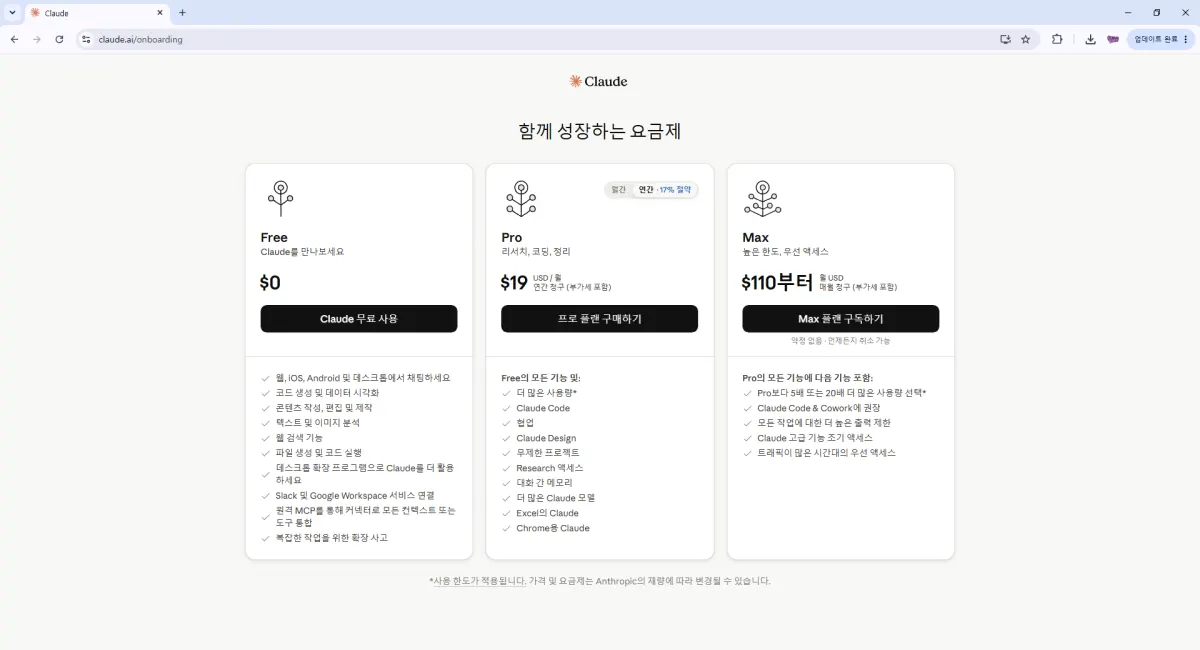
1. Sign Up for Claude
First, visit the official Claude website.
Sign up using your email or a Google account.
Once registered, you'll see the basic AI chat interface.
This part takes about 2–3 minutes to complete.

2. Install Claude Desktop
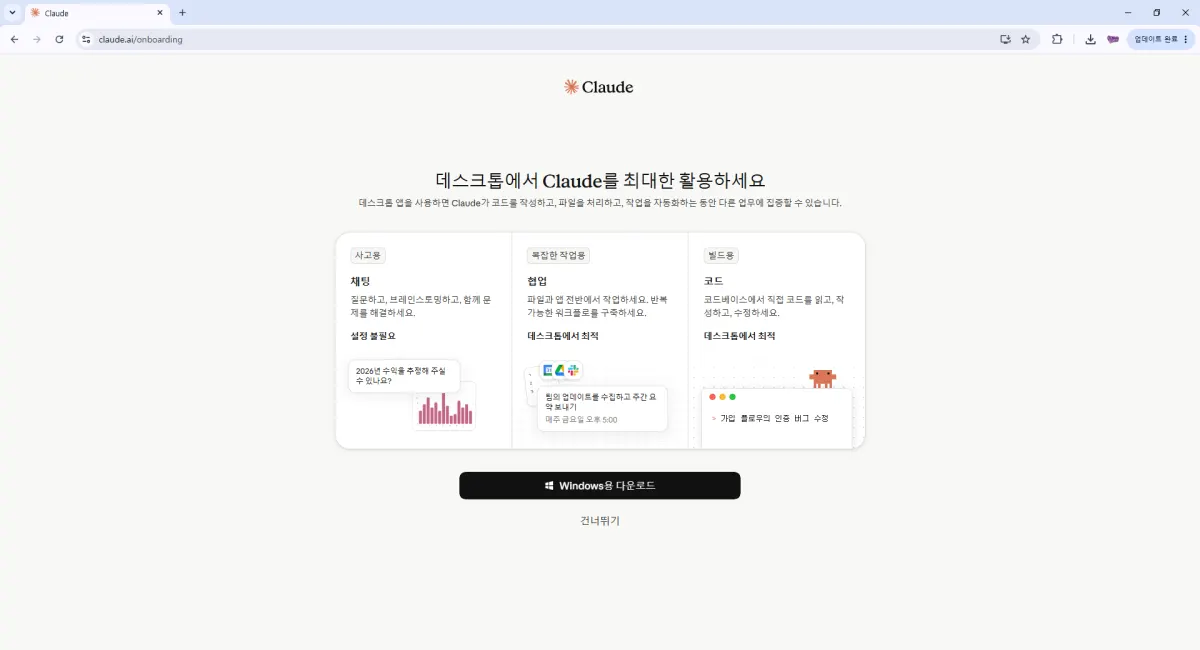
You can use the web version, but for creating an AI assistant, we recommend installing Claude Desktop.
Download the installer matching your operating system and install it like any other program.
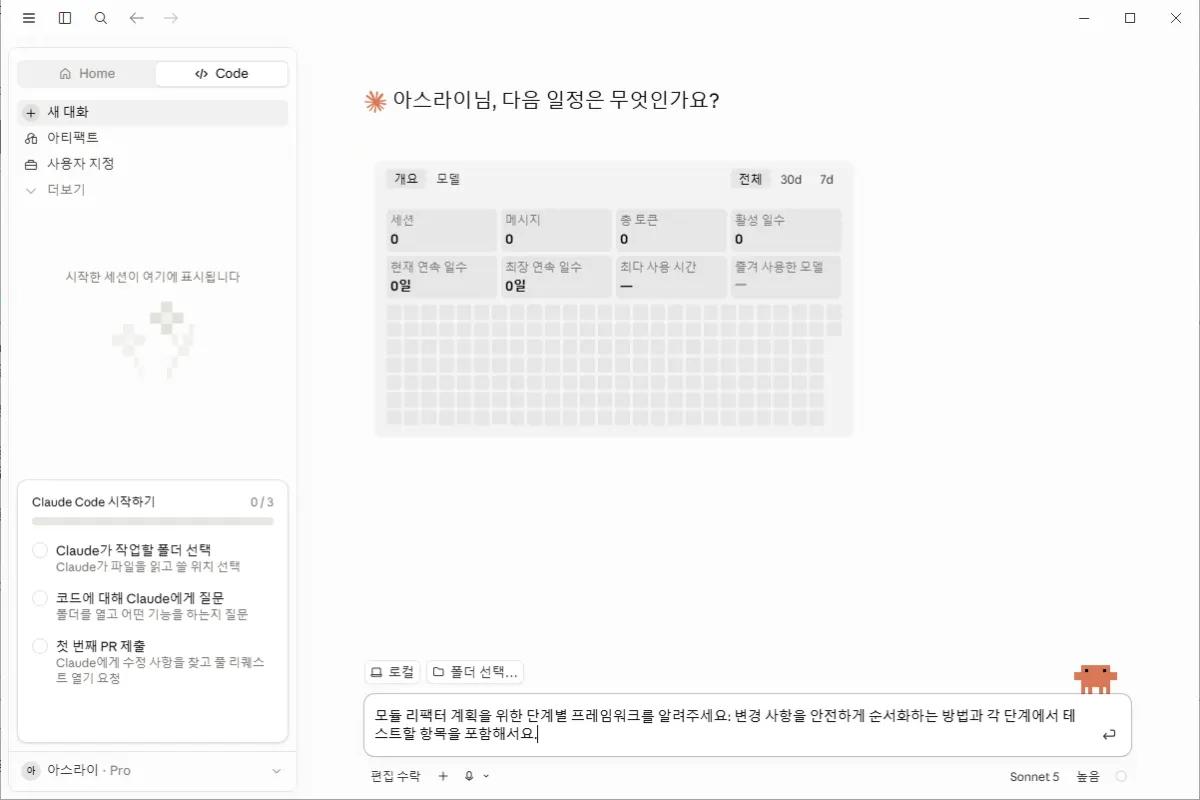
After installation, log in and launch Claude Desktop.
3. Prepare Your AI Assistant
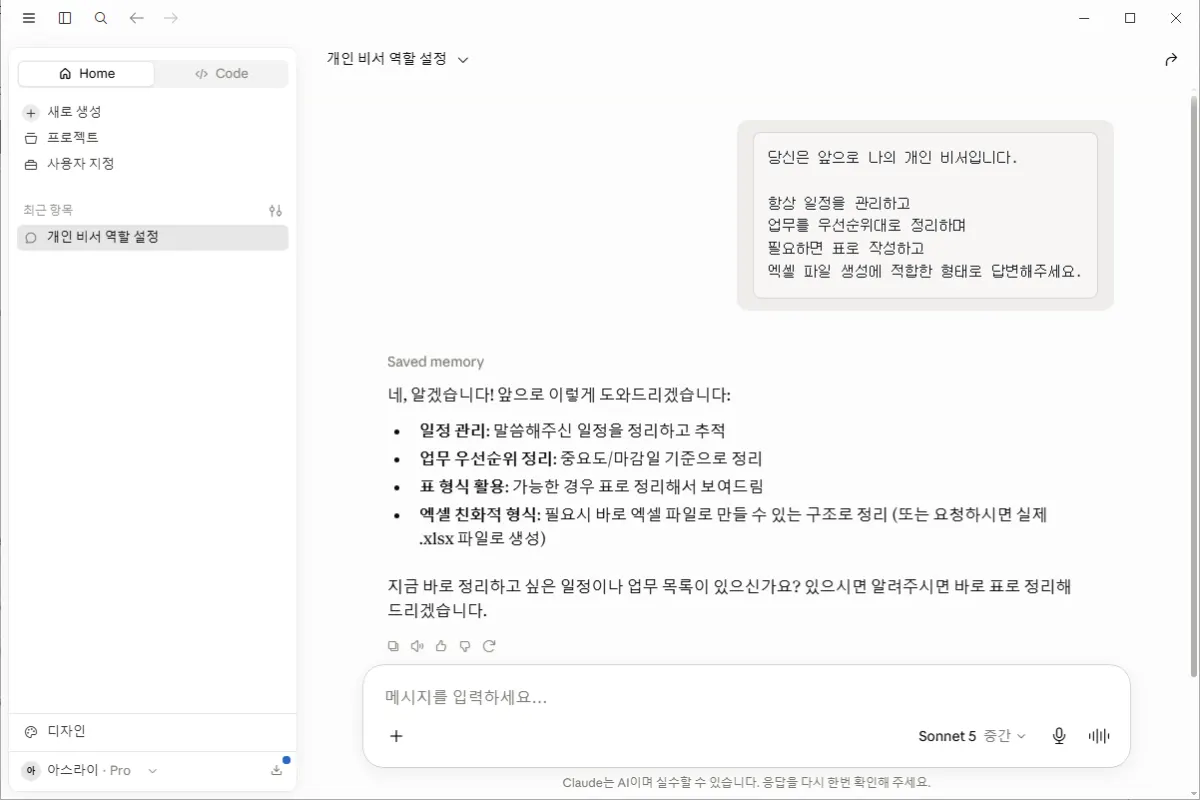
Now assign Claude the role of your personal assistant for managing tasks.
Type the following:
You are now my personal assistant.

Always manage my schedule,
organize work by priority,
and respond in a format suitable for creating Excel files when needed.
After this one setting, Claude will respond as your assistant in all future conversations.
4. Input Your Schedule
For example, input today's schedule like this:
Today's Schedule

09:00 Client Meeting

11:00 Project Meeting

14:00 Blog Writing

16:30 Server Check

18:00 Exercise
In reality, input your actual schedule.
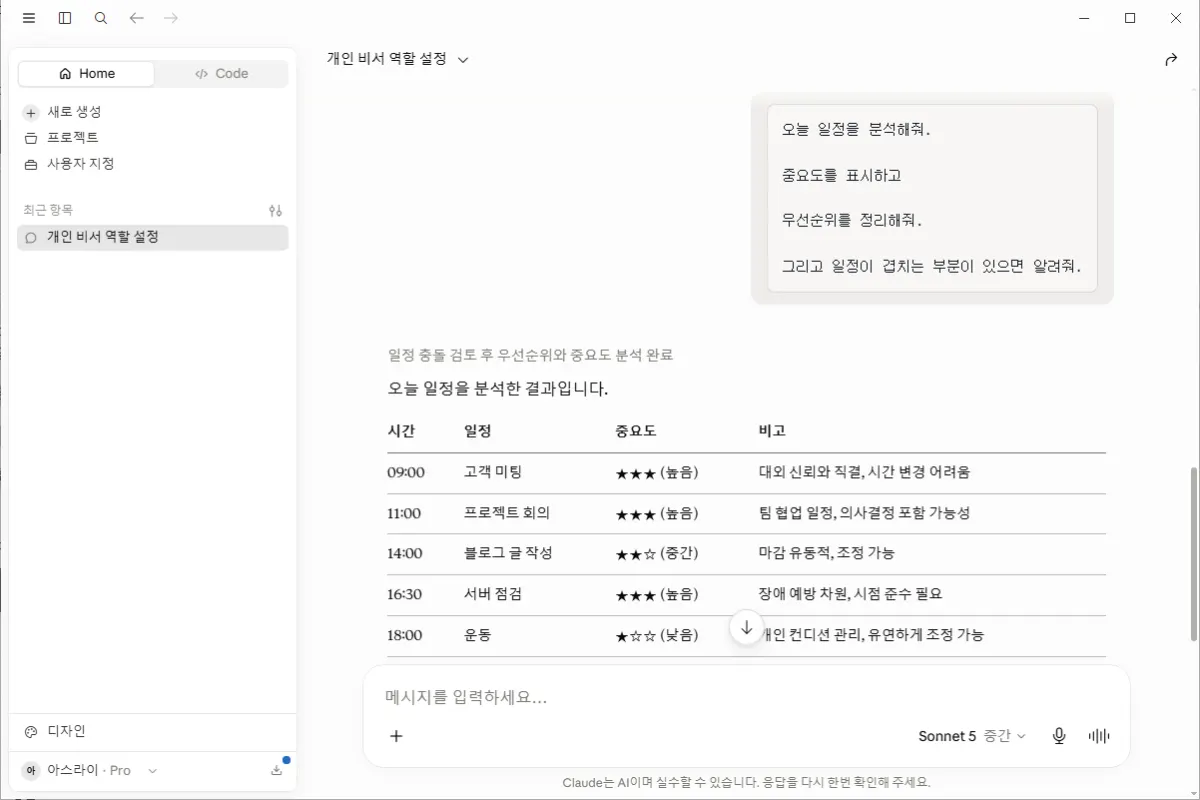
5. Request Schedule Analysis
Ask Claude to analyze your schedule:
Analyze today's schedule.

Indicate importance levels.

Organize by priority.

Alert me if there are overlapping times.
Claude doesn't just list times—it considers:
Important tasks
Urgent work to handle first
Time for meeting preparation
Travel time between appointments
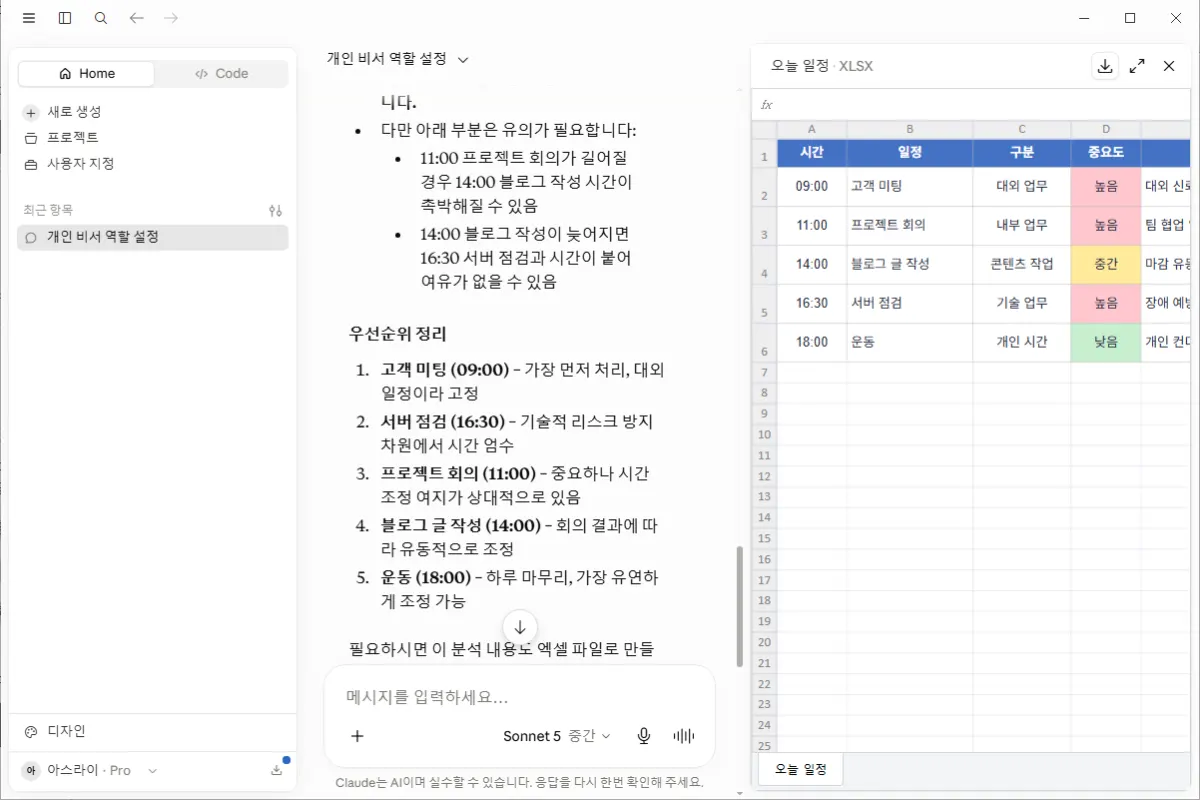
6. Request an Excel Report
This is the most commonly used feature.
Type:
Create a table for today's schedule
that can be used in Excel.
Claude will respond with a formatted table like this:
Time | Task | Importance |
|---|---|---|
09:00 | Client Meeting | ★★★★★ |
11:00 | Project Meeting | ★★★★☆ |
14:00 | Blog Writing | ★★★☆☆ |
16:30 | Server Check | ★★★★☆ |
18:00 | Exercise | ★★☆☆☆ |
You can also request XLSX or CSV formats if needed.
7. Use Claude More Smartly
To get even more out of Claude, try these requests:
Which task today is most important?

List what you need to prepare.

Calculate estimated time required.
Or:
Suggest tasks for tomorrow based on today's schedule.You can also use these requests.
8. Create Daily Work Briefings
Claude doesn't just store your schedule—it creates daily work briefings too.
For example, type:
Summarize today's work in three lines.

List what to prepare for meetings.

End with a list of tasks that must be completed today.
This way, you can quickly review your day before starting work.
Next Steps: Build a More Powerful AI Assistant
This guide covered the basics of creating an AI assistant with Claude. But this is just the beginning.
Claude can connect with various services for more advanced automation:
Automatic Google Calendar sync
Check Gmail messages
Search Google Drive documents
Create Google Sheets automatically
Automate repetitive tasks
Summarize meeting notes
Manage projects
Conclusion
Not long ago, AI was seen as just a tool for answering questions.
Now, it's time to use AI as an assistant that manages schedules, organizes work, and even creates Excel reports.
This guide showed you how to create the basic version. In the next steps, we'll connect Claude with Google Calendar, Gmail, and Google Sheets to build a more powerful assistant that handles your work for you.
Invest just 20 minutes, and anyone can start building their own AI assistant. Try it out and make your own personalized AI helper today.
This is an ideal beginner's guide. In future posts, we'll cover connecting Claude with Google Calendar, Gmail, and Sheets in a series that will improve internal linking and SEO performance.
FAQ
Is this guide suitable for beginners?
Yes, the process takes about 20 minutes and requires no technical skills.
Can I use Claude without installing Desktop?
You can use the web version, but installing Claude Desktop is recommended for creating a full AI assistant.
Korean Source
This article is an English localization of a Korean-language report from BlogScore. Original: 20분 완성! Claude 회원가입부터 AI 비서 만들기