
Building the Matching List Screen in Vibecoding Course
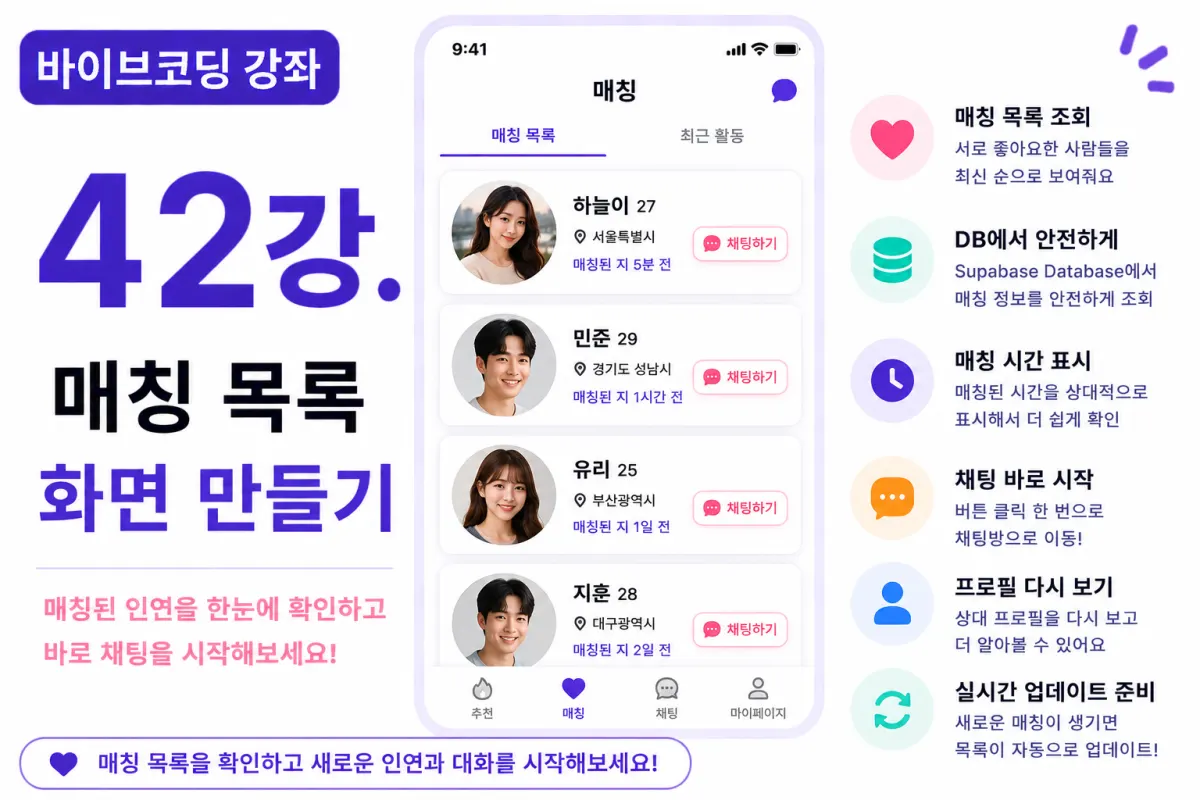
What You'll Learn in This Lesson
Last week, we implemented the automatic matching feature where users can match by clicking 'like' on each other's profiles.
Now that matches are established, users can start conversations with their matched partners.
In this lesson, we'll implement the Matching List Screen.
We'll cover these topics together:
Fetching matching list data
Designing card UI components
Sorting matches by latest activity
Connecting chat buttons
Handling empty lists
Preparing for real-time updates
By the end of this lesson, you'll have a screen that naturally transitions to the chat feature.
What Is the Matching List?
The matching list shows users who have successfully matched with each other through mutual 'likes'.
Users can view their matches at any time and start conversations.
This is one of the most frequently used screens in actual dating apps.
Database Query
This time, we'll query the matches table.
The information to retrieve includes:
Matched partner ID
Matching timestamp
Status (active)
We'll also fetch profile information from the Profiles table alongside this data.
Requesting Help from Cursor AI
First, we request help from Cursor AI with the following prompt:
Retrieve the matching list for the currently logged-in user from Supabase Database.
Sort the results by most recent matches.
The AI suggests a join approach and provides query code.
Displaying in Card Format
We'll display the matching list using card components, similar to profile screens.
Each card will show:
Profile photo
Nickname
Age
Location
Matching date
Maintaining consistent design with profile screens makes the experience more intuitive for users.
Sorting by Latest Matches
We'll display the most recently matched user at the top of the list.
This approach feels natural to users, as it shows their latest activity first.
Displaying Matching Time
We'll show when matches were established using relative time formatting:
5 minutes ago
Today
Yesterday
3 days ago
This format makes it easier for users to understand the timing of their matches.
Chat Start Button
Add a 'Start Chat' button to each card.
When clicked, this will navigate to the chat room (to be implemented in next lesson).
This lesson focuses on setting up the button and navigation flow only.
Viewing Profiles
In addition to the chat button, tapping a card will display the partner's profile details.
This allows users to revisit match information after matching has occurred.
Handling Empty Lists
If no matches exist yet, show this message:
No matches found yet.
Send likes to find new connections.
This is friendlier than showing an empty screen.
Profile Image Caching
The matching list screen gets accessed frequently, so we'll optimize profile images by using browser caching.
This prevents repeated image downloads and speeds up the screen load time.
Improving with Cursor AI
After implementing the feature, request from Cursor AI:
Improve the matching list screen for better visual appeal.
The AI will suggest improvements like:
Card spacing
Image size adjustments
Button design refinements
Margins and padding
Preparing for Real-time Updates
We'll prepare the system so new matches automatically update the list without requiring a page refresh.
Using Supabase Realtime, new matches will appear immediately in the list.
Implementing real-time updates will be covered in the next section.
Preparing for Search Functionality
To prepare for when user numbers grow, we'll consider adding a search feature.
We'll design the structure so that features like searching by nickname or sorting by recent conversations can be easily added later.
Testing the Feature
Verify these components work as expected:
Matching list fetches correctly
Sorts by latest matches
Displays cards properly
Chat button functions
Profile navigation works
Empty state message appears
If all these work, the matching list screen is complete.
GitHub Commit
After completing the feature, ask Cursor AI to generate a commit message:
Create a commit message for implementing the matching list screen.
Committing by feature improves project quality and maintainability.
Additional Features in Production
In real services, these features would also be included:
Recent conversation previews
Unread message count indicators
Online status display
Favorite matches feature
This project focuses on implementing the core matching list functionality only.
Next Steps: Chat Functionality
With this lesson complete, you'll have a fully functional screen for managing matches.
The next section will implement real-time chat features to complete the dating app's core functionality.
Preview of Next Lesson
In the next lesson, we'll implement the chat room creation feature.
We'll create a system where only matched users can start chat rooms, and store chat room information using Supabase Database.
Conclusion
This lesson implemented the matching list screen for our dating app.
We covered fetching matches, card UI design, sorting by latest activity, connecting chat buttons, and handling empty states—creating a feature commonly used in real dating apps.
In upcoming lessons, we'll implement real-time chat systems to further develop the application.
FAQ
What is the purpose of the matching list in a dating app?
The matching list shows users who have successfully matched through mutual likes, allowing them to start conversations and view profile details.
How does the matching list handle empty states?
When no matches exist, it displays a friendly message like 'No matches found yet. Send likes to find new connections.' instead of an empty screen.
Korean Source
This article is an English localization of a Korean-language report from BlogScore. Original: [바이브코딩 강좌] 42강. 매칭 목록 화면 만들기