
Building an AI Development Environment: Installing Claude Code in VS Code

AI Development Environment Setup Project: Episode 7
Installing Claude Code in VS Code and Starting Your First AI-Assisted Development
So far, we've been building our AI development environment step by step.
Setting up Ubuntu Server
Installing Docker
Setting up Forgejo Git server
Registering production project in Git
Cloning AI development server
Registering SSH keys
Connecting via VS Code Remote SSH
Now we're finally ready to start developing real projects with AI assistance.
This episode will show you how to install Claude Code and analyze and modify your actual project using it.
What is Claude Code?
Claude Code is an AI-powered development tool provided by Anthropic.
Different from asking questions on ChatGPT or the Claude website, it understands your entire project currently open in your editor,
finds relevant files to modify,
and helps with development while connecting to Git.
The larger your project becomes, the more powerful its performance gets.
Why Use Claude Code?
Previously,
You had to search for desired files manually
Search through functions
Manually modify code
Solve bugs yourself
But with Claude Code,
it analyzes your project first,
finds relevant files,
suggests where modifications are needed,
and even makes the changes when necessary.
It's one of the most powerful development tools in the AI era.
Preparing Your Claude Pro Account
To use Claude Code, you need a Claude Pro or Max account.
First, check your login status:
claude loginA browser window will open for you to log in with your Claude account.
After successful login, return to your terminal.
Installing Claude Code
Run the following command in your AI development server's terminal:
sudo npm install -g @anthropic-ai/claude-codeOnce installation is complete, verify the version:
claude --versionIf the version number appears, the installation was successful.
Opening Your Project
In VS Code,
connect to your AI development server via Remote SSH.
Open the following project:
/home/projects/pohanginfoVerify your current location in the terminal:
pwdIf everything is correct, you should see:
/home/projects/pohanginfoRunning Claude Code
From your project folder,
run the following command:
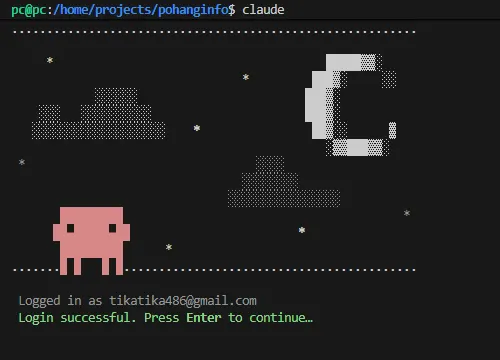
claudeAfter a moment, Claude Code will start running.
When you run it for the first time,
a process to analyze your current project begins.
Claude automatically checks your project's file structure and Git status.

First Project Analysis
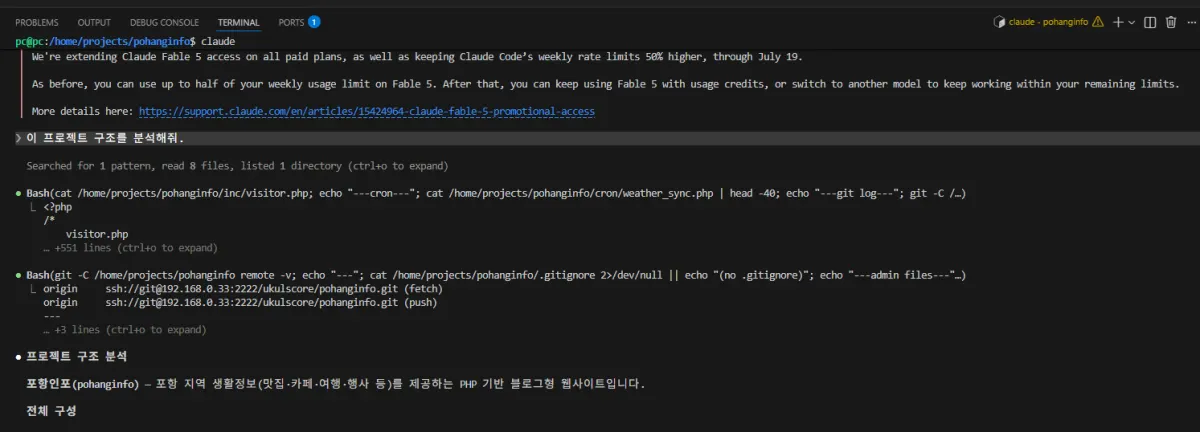
Ask Claude to explain your project first.
For example:
Explain the project structure.Or ask:
Where is the admin page located?Claude will provide a detailed explanation with relevant files.
First Code Modification
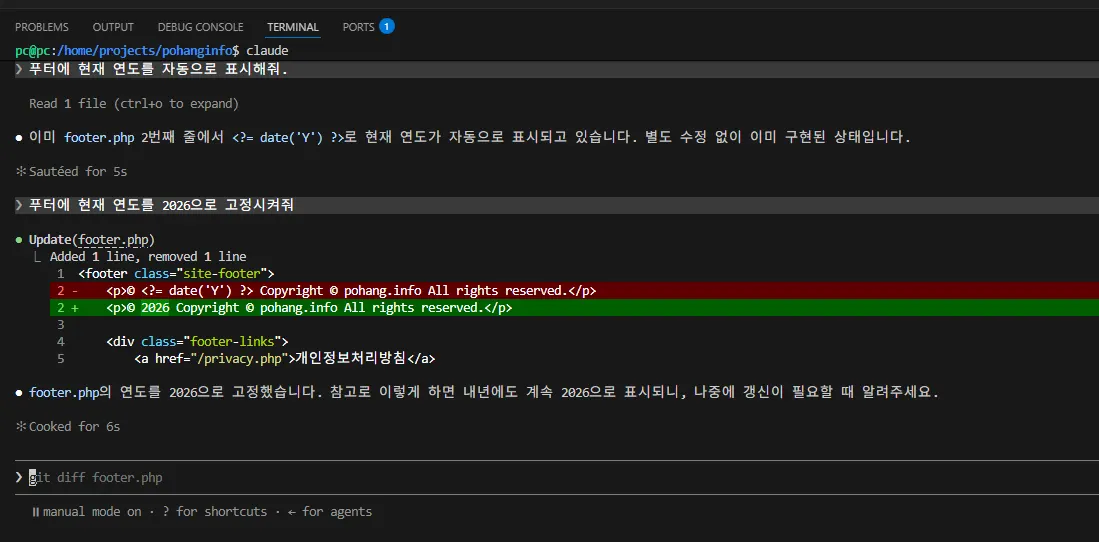
Now let's try requesting a simple modification.
For example:
Display the current server time on the main page.Or ask:
Automatically display the current year in the footer.Claude will find the required files and suggest changes.
Reviewing Changes
You must always review AI-modified code.
Check your Git status:
git statusReview the changes:
git diffWhile Claude Code is an excellent AI,
final review must always be done by a developer.
Committing Changes
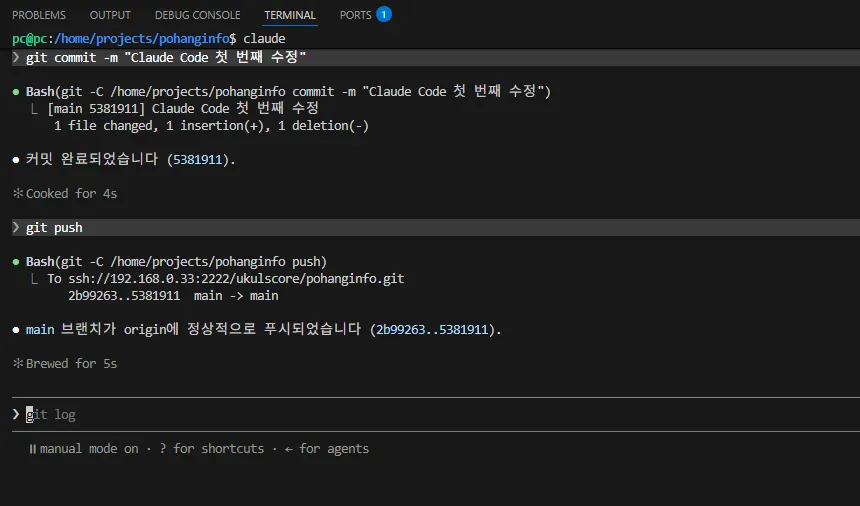
If you're satisfied with the changes, save them to Git:
git add .

 git commit -m "Claude Code first modification"

 git push
You'll be able to see the new commit on Forgejo as well.
Your Future Development Workflow
From now on, development will follow this workflow:
VS Code
↓
Claude Code
↓
AI code modification
↓
git diff
↓
Testing
↓
Commit
↓
Push
↓
Forgejo
↓
Production server pull
↓
Service update
Following this flow will streamline your development process.
Important Notes When Using Claude Code
Claude Code is an excellent AI tool,
but it doesn't write perfect code for every situation.
You must always follow these steps:
Review changes
Test modifications
Commit to Git
Deploy to production
Code written by AI still requires human review.
Benefits of Using Claude Code
Claude Code enables you to quickly perform various tasks including:
Project analysis
Code generation
Bug fixing
Refactoring
Documentation writing
Git integration
Especially, its ability to understand existing projects significantly boosts productivity.
Summary of This Lesson
This episode covered installing Claude Code and using it within VS Code to analyze and modify your actual project.
We've now completed the environment for developing with AI assistance.
In the next lesson, we'll build an MCP (Model Context Protocol) system to create a more powerful AI development environment where Claude Code can understand database and server information alongside your project.
Next Lesson Preview
AI Development Environment Setup Project: Episode 8
MCP Server Setup and Integration with Claude Code
Topics to Cover
What is MCP?
Installing the MCP Server
Connecting Claude Code
MySQL integration
Git integration
Completing your AI development environment
FAQ
What is Claude Code?
Claude Code is an AI-powered development tool by Anthropic that analyzes your entire project, finds relevant files to modify, and helps with code changes while connecting to Git.
Do I need a special account to use Claude Code?
Yes, you need a Claude Pro or Max account to access Claude Code features.
Can Claude Code replace human developers?
No, Claude Code provides assistance but requires developer review of changes before committing and deploying to production.
Korean Source
This article is an English localization of a Korean-language report from BlogScore. Original: [AI 개발환경 구축 프로젝트] 7강 VS Code에서 Claude Code 설치하고 첫 AI 개발 시작