
Build Your Personal Portfolio Website with HTML and CSS
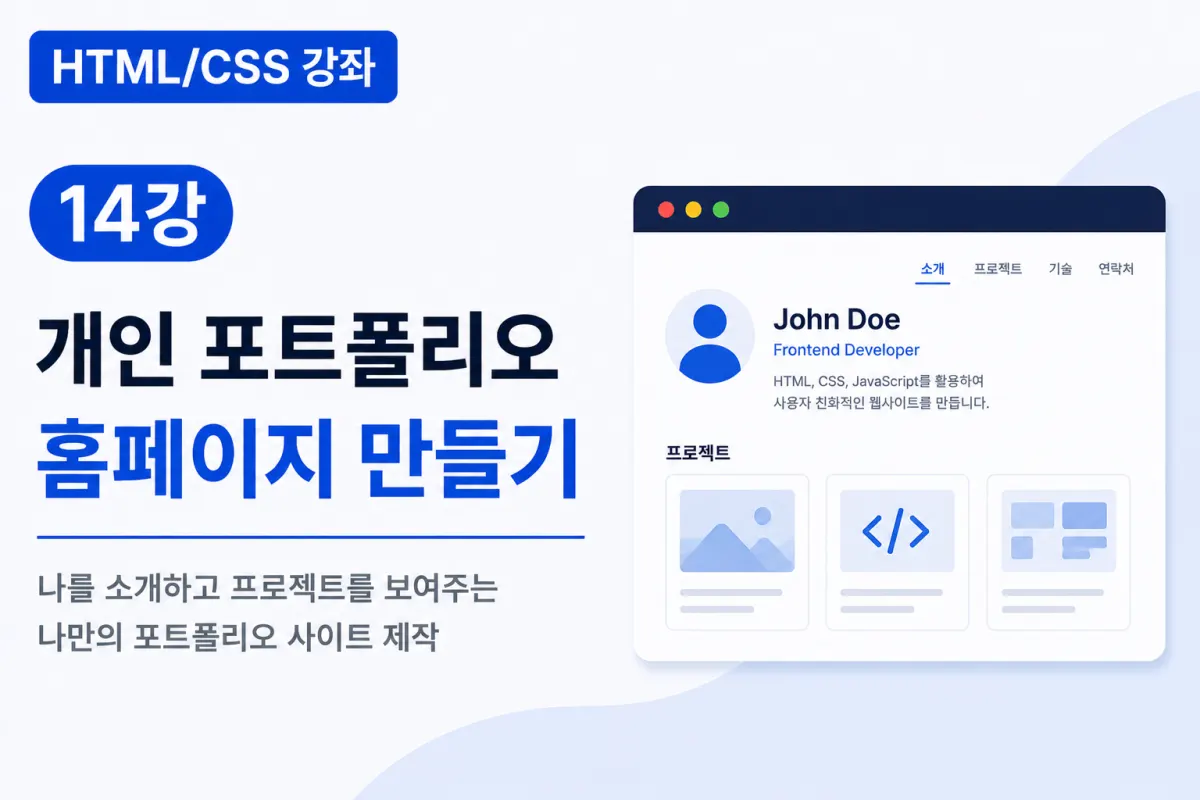
What Is a Portfolio Website?
A portfolio website functions like an online resume, showcasing your experience and skills.
Designers display their design work,
developers present projects,
students share learning content,
and freelancers highlight completed tasks.
Today, many job seekers include a personally created portfolio website alongside traditional cover letters.
This Project's Goal
In this lesson, we'll create a personal homepage with the following features:
Top menu (Header)
About Me (Hero)
About (Introduction)
Skills
Projects
Contact
Footer
You can implement this structure using the HTML and CSS you've learned so far.
Planning Your Website Structure
First, let's plan the overall structure:
Header

↓

Hero

↓

About

↓

Skills

↓

Projects

↓

Contact

↓

Footer
Using semantic tags for each section will make the structure much clearer.
Creating the Header
The top area should contain your site name and navigation menu.
<header>

    <h1>My Portfolio</h1>

    <nav>

        <a href="#about">About</a>

        <a href="#skills">Skills</a>

        <a href="#projects">Projects</a>

        <a href="#contact">Contact</a>

    </nav>

</header>
Using Flexbox will help align the menu neatly.
header{

    display:flex;

    justify-content:space-between;

    align-items:center;

}
Creating the Hero Section
The Hero section is what visitors see first.
Add your name and a brief introduction here.
<section class="hero">

    <h2>Hello.</h2>

    <h1>John Doe</h1>

    <p>

        Creating various websites using HTML and CSS.

    </p>

</section>
A large heading with a concise introduction effectively conveys your first impression.
About Section
Use the About section to provide more detailed information about yourself.
For example:
What you're currently studying
Your areas of interest
Your future goals
You can write these details here.
<section id="about">

    <h2>About Me</h2>

    <p>

        Studying web front-end development.

    </p>

</section>
Skills Section
This is where you list your technical abilities.
For example:
<ul>

    <li>HTML5</li>

    <li>CSS3</li>

    <li>JavaScript</li>

</ul>
Adding icons or using card layouts makes the section more visually appealing.
Projects Section
This is the most important section.
Introduce your own projects here.
<div class="project">

    <h3>Blog Creation</h3>

    <p>

        A blog created using HTML and CSS.

    </p>

</div>
When you have multiple projects, arrange them in a card layout for better presentation.
Contact Section
Provide contact information so visitors can reach out to you.
<section id="contact">

    <h2>Contact</h2>

    <p>

        email@example.com

    </p>

</section>
When operating a real portfolio, you'll often include email, GitHub, blogs, and social media links.
Creating the Footer
Add simple information to the bottom of your page.
<footer>

    © 2026 My Portfolio

</footer>
It's common to include copyright information and basic contact details in the footer.
Styling with CSS
Create a simple, clean design for your overall layout.
body{

    font-family:"Noto Sans KR", sans-serif;

    color:#333;

    background:#f7f9fc;

}
Choosing one main color and applying it consistently throughout the design creates a professional look.
Creating Project Cards
Projects are often displayed in card format.
.project{

    padding:20px;

    border:1px solid #ddd;

    border-radius:10px;

    box-shadow:0 4px 10px rgba(0,0,0,0.08);

}
Using Flexbox to arrange multiple projects creates a cleaner layout.
Applying Responsive Web Design
Your portfolio should look good on mobile devices too.
@media (max-width:768px){

    nav{

        flex-direction:column;

    }

}
It's best to make menus and project cards automatically align according to screen size.
Tips for Making Your Portfolio Stand Out
A good portfolio prioritizes readability and content over flashy effects.
Consider these points:
Keep your introduction concise
Showcase only representative projects
Use ample white space
Limit colors to 2-3 consistent ones
Ensure mobile-friendliness
Consistently update your portfolio with new projects
Even small projects can be helpful when regularly documented and organized.
Common Mistakes Beginners Make
1. Writing an overly long introduction
Keep your main points brief and to the point.
2. Insufficient project descriptions
Include what you built and which technologies you used for better understanding.
3. Overemphasizing animations over design
A clean layout creates a better impression than complex effects.
4. Not checking mobile displays
Apply responsive web design to view and test your site on various devices.
Key Takeaways from This Lesson
Let's summarize what we learned today:
A portfolio is a website that showcases your skills and projects.
It typically follows the structure: Header, Hero, About, Skills, Projects, Contact, Footer.
The Projects section works well in card format.
Using Flexbox with responsive web design creates clean layouts across different screen sizes.
Regularly updating your portfolio is important.
This project is a meaningful practical exercise that combines the HTML and CSS you've learned so far to build your own website.
In Conclusion
In this lesson, we created a personal portfolio website by combining essential concepts from our previous HTML and CSS lessons.
A portfolio is more than just an assignment—it's a valuable asset for documenting your growth and showcasing your skills. By gradually adding new projects over time, you can develop a highly polished website that reflects your professional journey.
In the next lesson, we'll learn how to deploy your website (using GitHub Pages or web hosting) and practical tips, taking your completed site live on the internet for the final step of this project.
FAQ
What is the purpose of a portfolio website?
A portfolio website showcases your skills, projects, and experience in a professional online format, making it easier for potential employers or clients to understand your capabilities.
How can I make my portfolio stand out without using flashy effects?
Focus on clear content, concise descriptions, ample white space, consistent color schemes (2-3 colors), and mobile-friendly design rather than complex animations.
Korean Source
This article is an English localization of a Korean-language report from BlogScore. Original: [Html/CSS 강좌] 14강 개인 포트폴리오 홈페이지 만들기